Features

See what ServeWay™ does for your church. Each section below shows a feature, how it works, and how it saves your staff time and helps your members stay connected, informed, and involved. Smaller features are listed further down.

Sermon notes become a slideshow with one click. Prayer requests land on the prayer list once approved. Facility requests show up on the calendar once approved by staff.

Saves time. Reduces mistakes.

ServeWay™ is church ministry software for Windows 11 Pro. One-time $99 license. No monthly bill.

Download the free 45-day trialSee a week with ServeWay™

  1. Big buttons for each ministry area
  2. Buttons turn on only for roles that allow them

One app instead of many

One app instead of many. Enter it once. ServeWay™ puts it everywhere it belongs.

Many churches piece together separate tools. Each one has its own login, its own list of people, and its own bill. ServeWay™ does these jobs in one Windows app.

JobWhat many churches use nowPublished priceIn ServeWay™
Church database and directoryPlanning Center People, or Breeze (Tithely Church Management)$0 (People) or $72/mo (Breeze)1✓ Included
Child check-in and labelsPlanning Center Check-Ins$15–$32/mo (30–75 check-ins a day)1✓ Included
Serving teams and schedulesPlanning Center Services$15–$32/mo (20–50 team members)1✓ Included
Room bookingPlanning Center Calendar$15/mo (5 rooms)1✓ Included
Online givingPlanning Center Giving, or Tithely Giving$15–$32/mo (Planning Center) or $0/mo (Tithely), plus card fees2✓ Included
Group textingText In Church, or Clearstream$30–$35/mo1✓ Included
Email newslettersFlocknote Starter$42/mo (101–200 members)1✓ Included
Church websiteTithely Sites, or Nucleus$19/mo (Tithely Sites) to $65–$99/mo (Nucleus)1✓ Included

ProPresenter is not replaced. ServeWay™ works with it: nursery messages, the check-in headcount, and stage alerts.

Separate tools, small church (about 100–200 people)

About $1,400–$3,400 a year

Before card fees.4

ServeWay™ Complete Bundle

$249 the first year, then $199 a year

App, website build, website and database hosting, Tier 1 support, and member pages. Tier 2 support is +$50 a year. Giving uses your church’s own Stripe account at Stripe’s standard 2.9% + 30¢, with no ServeWay™ markup. Tithely still works.3 Texting, AI, email, and streaming services bill you directly.5

Just want the app? $99, one time, for a lifetime license. Just want a hosted website? $29.99 to build, then $9.99 a month, billed yearly. Try ServeWay™ free for 45 days. No credit card needed.

Tight integration

Enter it once. It flows everywhere.

Separate tools mean typing the same name again and again. In ServeWay™, every part of the app shares the same information.

A visitor on Sunday

  1. A greeter types the name at the kiosk
  2. A name tag prints
  3. The welcome series starts
  4. A follow-up is opened for staff

A neighborhood walk

  1. A team marks a stop “prayer request”
  2. It waits in the prayer Approval Queue
  3. Once approved, it is on the prayer list

Sunday check-in

  1. Children are checked in
  2. The ProPresenter headcount updates
  3. The count fills in attendance on the announcement slides

One calendar

  1. Add an event once
  2. It shows in the newsletter
  3. On the lobby wall calendar
  4. And on your website

One login

  1. A member signs in to ServeWay™
  2. The same user name and password work on the church website

80+ features

Six jobs. One app.

Welcome and care for people

Every guest gets noticed, welcomed, and followed up with.

  • People, households, and a printable church directory
  • Enter a visitor at the kiosk and print a name tag
  • A welcome series by email, and a follow-up for staff
  • “Missed recent weeks” shows who has been away
  • Milestones, prayer requests, and a prayer list for each class
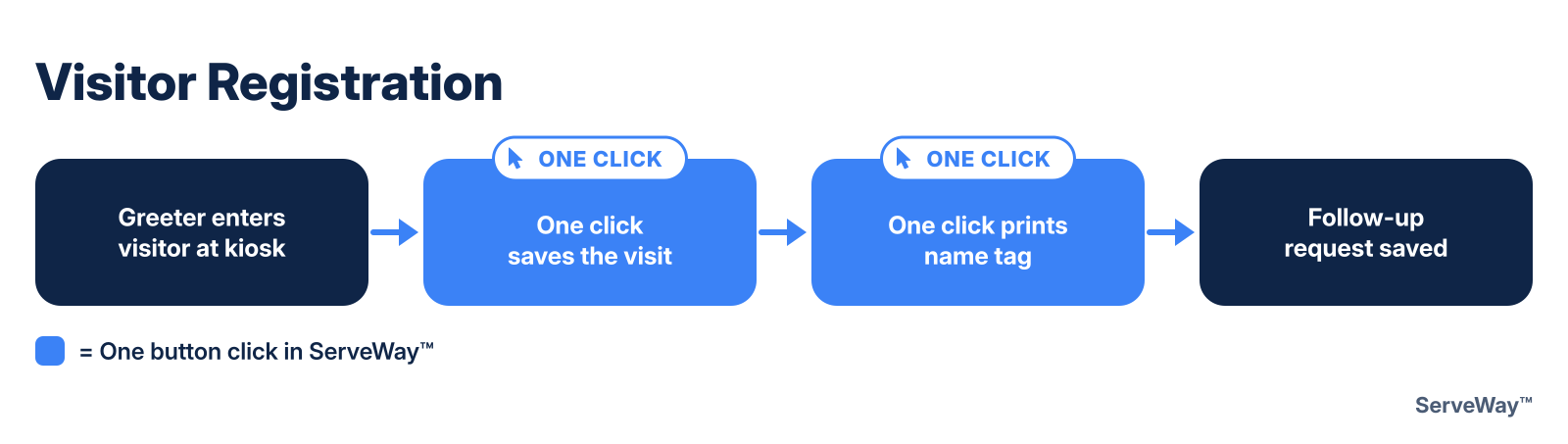
Visitor registration steps in ServeWay

Sunday morning: kids, classes, and counts

Check-in is fast, kids are safe, and the counts add up on their own.

  • Child check-in with two matching labels
  • Authorized pickups, allergies, and photos at checkout
  • Sunday School attendance and class counts
  • Worship attendance for your slides
  • Kiosk mode and multi-monitor setup
Child check-in steps in ServeWay

Reach your neighborhood

Plan a canvass on a map and know who to visit next.

  • Neighborhood canvass with a street map
  • Give streets to a class, then split them into teams
  • Print walk sheets, or use the phone page
  • Prospects: enter results on a phone, or scan the walk sheets
  • “Wants a visit” opens a visitor follow-up

Keep everyone informed

One calendar and one set of groups keep every message in step.

  • Email, text, and voice messages to groups, plus urgent alerts
  • Newsletters by email, also posted to your website
  • Announcement slides and a handout PDF
  • Monthly calendar, lobby wall calendar, and events
  • Facility requests with an approval queue
ServeWay lobby wall calendar

Plan worship and serve together

Sunday’s slides, teams, and stream are ready in a few clicks.

  • Sermon notes become PowerPoint slides and a PDF
  • Serving teams and schedules, such as nursery and security
  • Works with ProPresenter: nursery messages, headcount, stage alerts
  • Live streaming with OBS to YouTube, Facebook, Vimeo, or MUX.com
  • One click puts the sermon on your website
ServeWay live stream screen

Care for the money

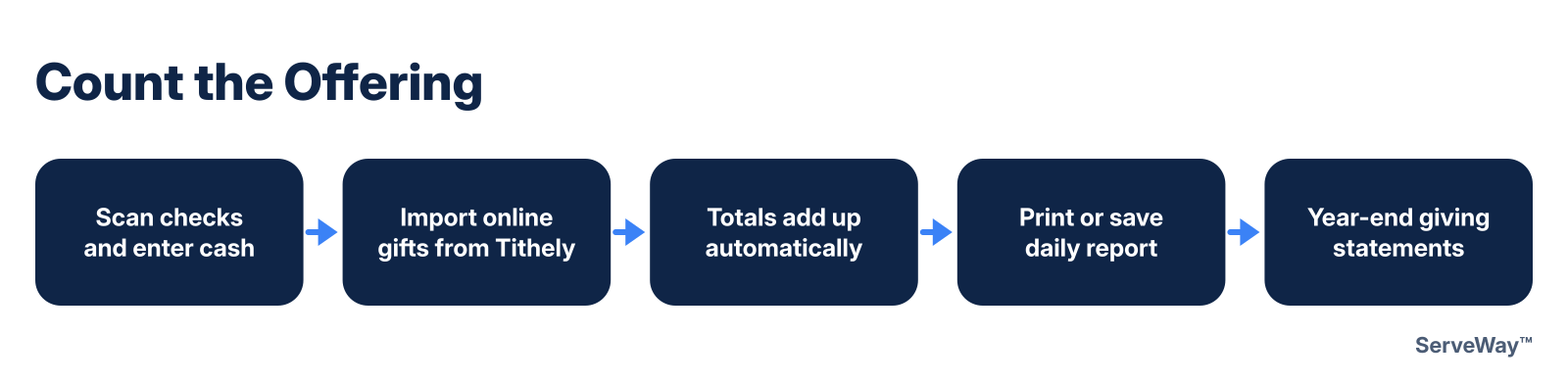
Count the offering faster and keep clean records.

  • Check scanning with AI reading suggests giver, amount, and fund
  • Cash by envelope or loose cash, and split gifts
  • Online giving through your own Stripe account, or Tithely
  • Year-end giving statements
  • Budget and expense requests
Offering count steps in ServeWay

Under every job

Safe, simple, and in your language.

  • Website plugin with member pages and the same login
  • Backups and two-factor sign-in
  • English, Spanish, Portuguese, and Korean
  • AI writing helper and dictation, when you turn them on
ServeWay People screen

Download the free 45-day trial

  1. Prices are each company’s published US monthly price, checked October 14, 2026. Prices change. Companies that only give quotes are left out. Sources: Planning Center, Breeze / Tithely Church Management, Tithely, Text In Church, Clearstream, Flocknote, Nucleus.
  2. Every giving tool has card fees. Planning Center lists 2.15% + $0.30. Tithely lists 2.9% + $0.30.
  3. Stripe’s standard rate is 2.9% + 30¢ per card charge (stripe.com/pricing). Your church is the merchant of record.
  4. A lean mix (Breeze $72 + Tithely Sites $19 + Text In Church $30 a month) is about $1,452 a year. Piece by piece (Planning Center Check-Ins, Services, and Giving at $32 each, room booking $15, Clearstream $35, Flocknote $42, and Nucleus $99 a month) is about $3,444 a year.
  5. Third-party services are billed to your church by those companies directly, with no ServeWay™ markup: Twilio (texting and voice), your AI provider, Brevo (email), and MUX.com (streaming).

See every feature at a glance

Every feature in the ServeWay™ app and website plugin on one page.
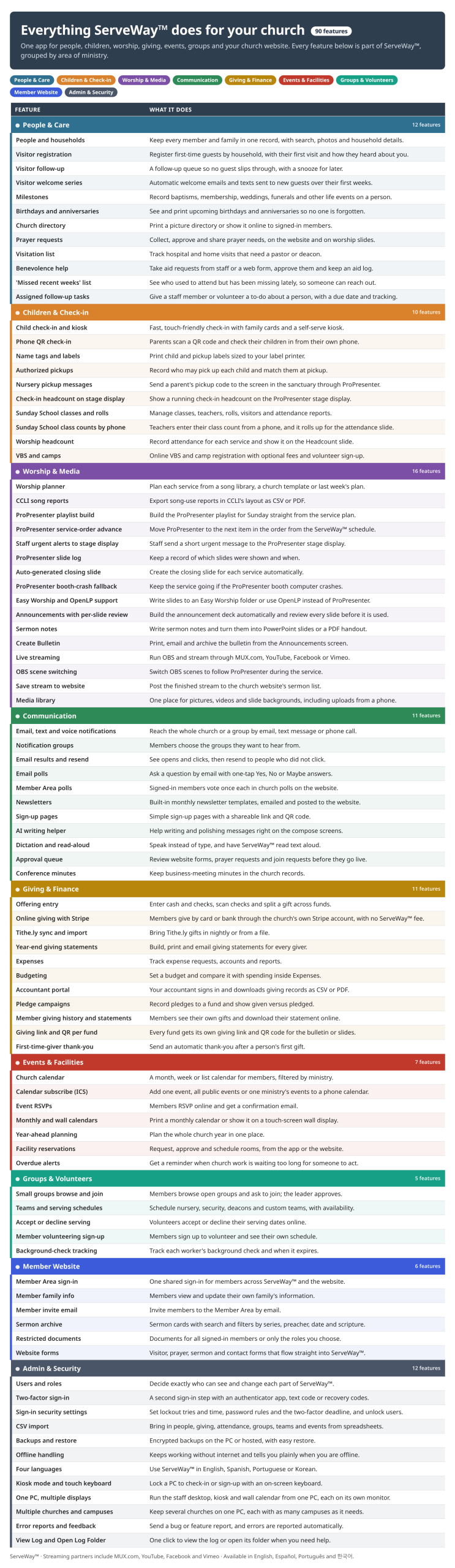
ServeWay feature chart listing every feature in the app and website plugin

Download the feature chart (PDF)

Sunday slideshows, built for you

The pastor fills out a short sermon form on the church website. In the office, one click on Generate Word And PowerPoint turns it into the sermon slides and a printable notes handout. Generate Prayer List PowerPoint builds the prayer slides, and Create Announcements builds the announcement slides and a PDF handout from your own template.

How it helps: The outline the pastor typed once becomes Sunday’s slides, with no copying from one program to another.
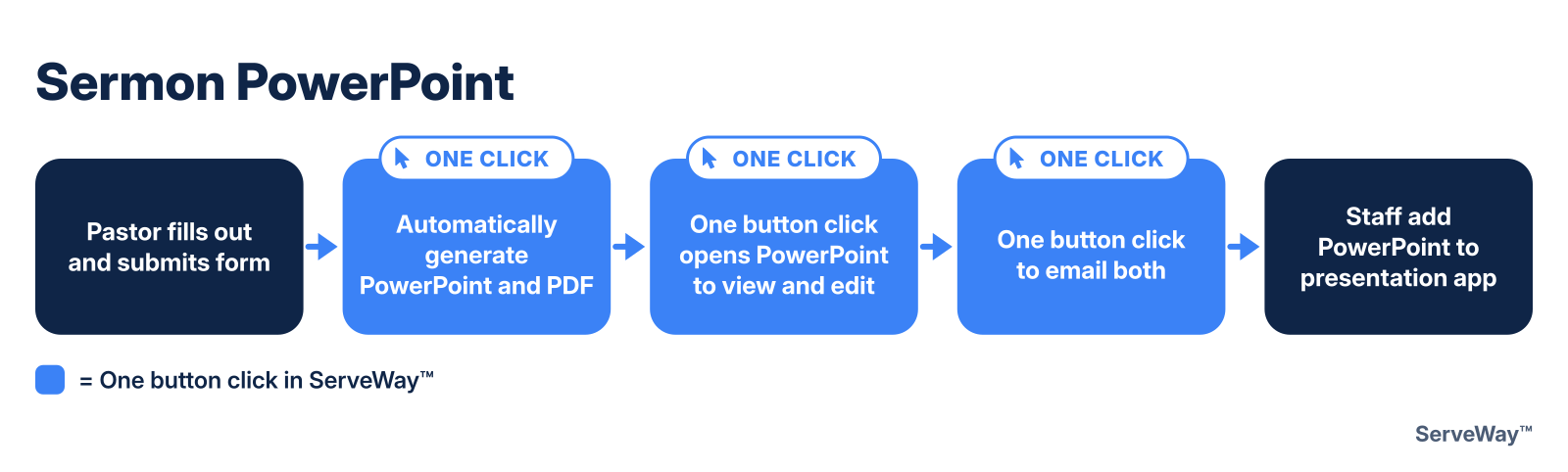
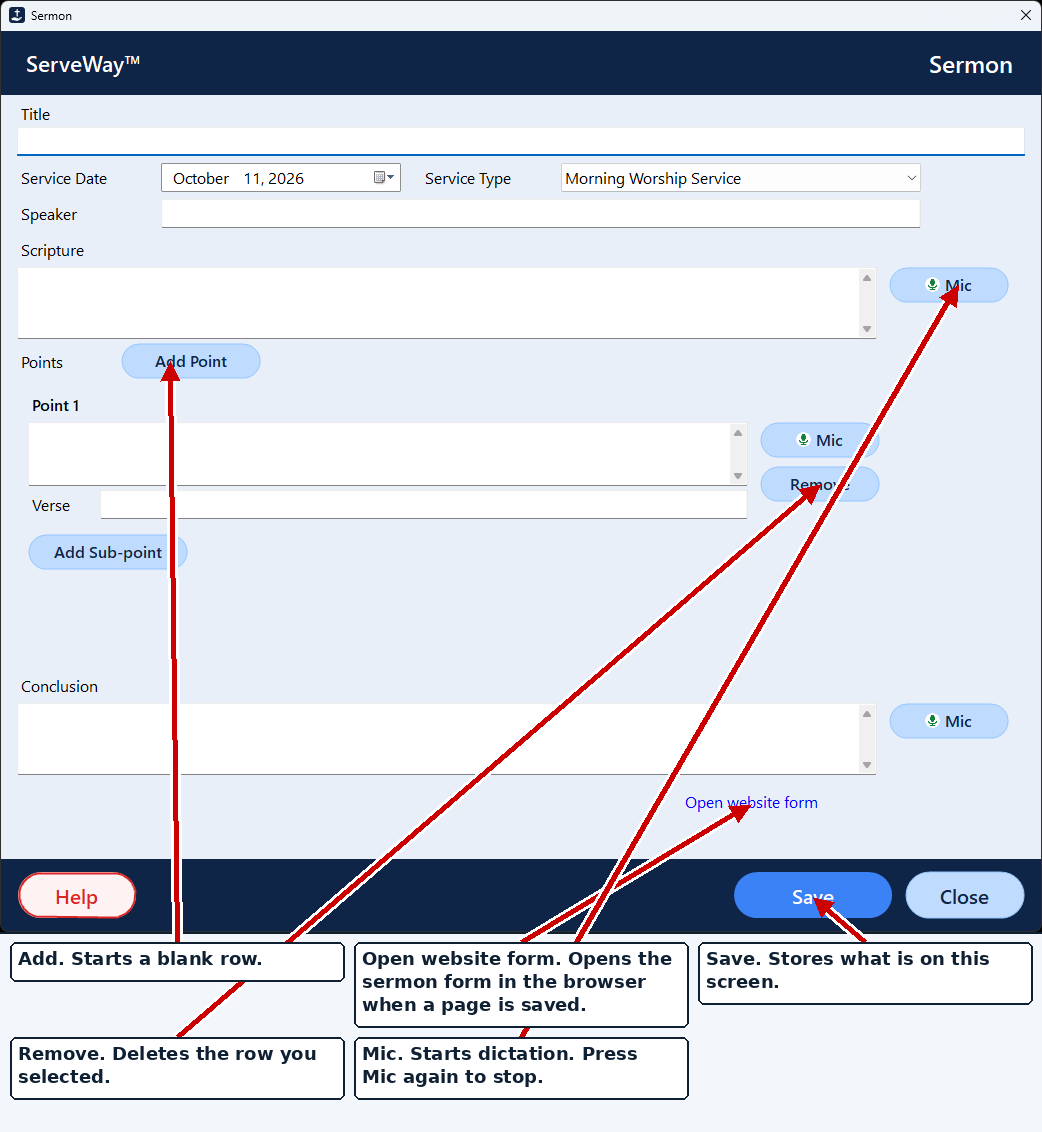
Diagram of sermon notes becoming slides: the pastor submits the sermon form, then one button adds the PowerPoint to the presentation app.
Sermon form to slideshow in one click
Sermon form with the service date, Morning Worship Service, points, a microphone button, and Open website form. The sermon-notes screen that names Belmont was not used.
The sermon form the pastor fills out
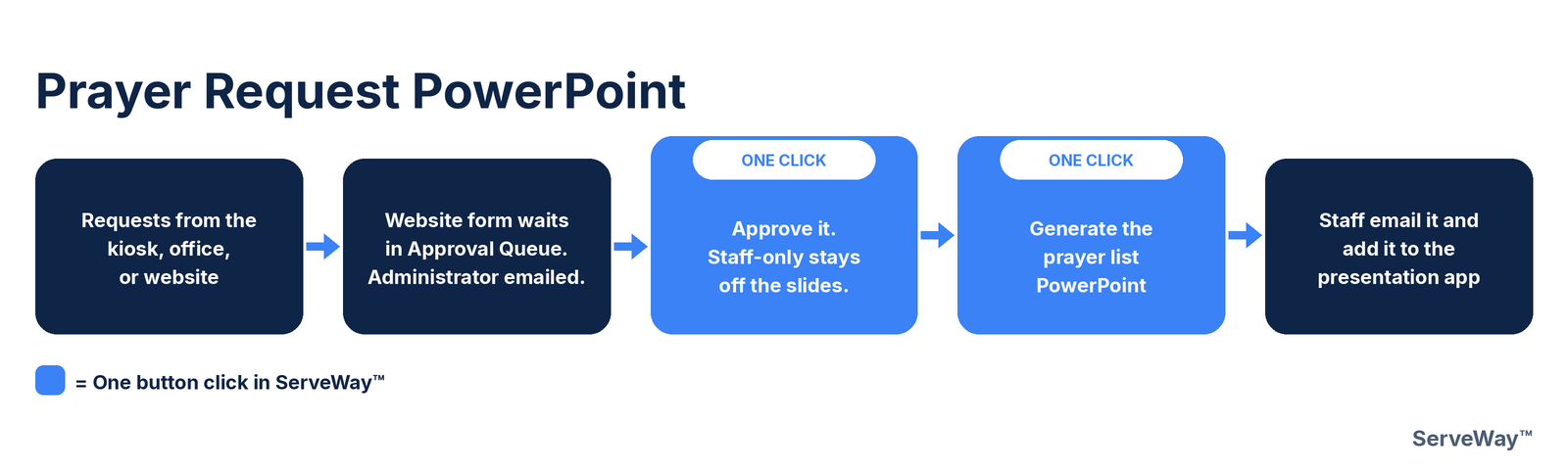
Diagram of prayer requests from the kiosk, this PC, or the website going onto a PowerPoint with one button.
Prayer requests to slideshow in one click

Your WordPress site stays in sync with the app

The ServeWay™ plugin connects your church’s WordPress website to ServeWay™, so the site keeps up as you work. Mark a prayer request answered and it drops off the members’ prayer page. Update a family’s phone number in People and the online directory shows the new number. Website form requests come straight into ServeWay™ for staff to approve.

  • Prayer list: website shows each active request’s short line
  • Directory & Member Area: kept up to date from ServeWay™
  • Website forms: prayer requests come in with Read Emails; staff approve each one
  • Facility requests land in the Approval Queue
  • Calendar & events: bookings show on the website calendar when staff approve them for it
  • Cloudflare Turnstile blocks junk form submissions

How it helps: Change it once in the office and the website keeps up.
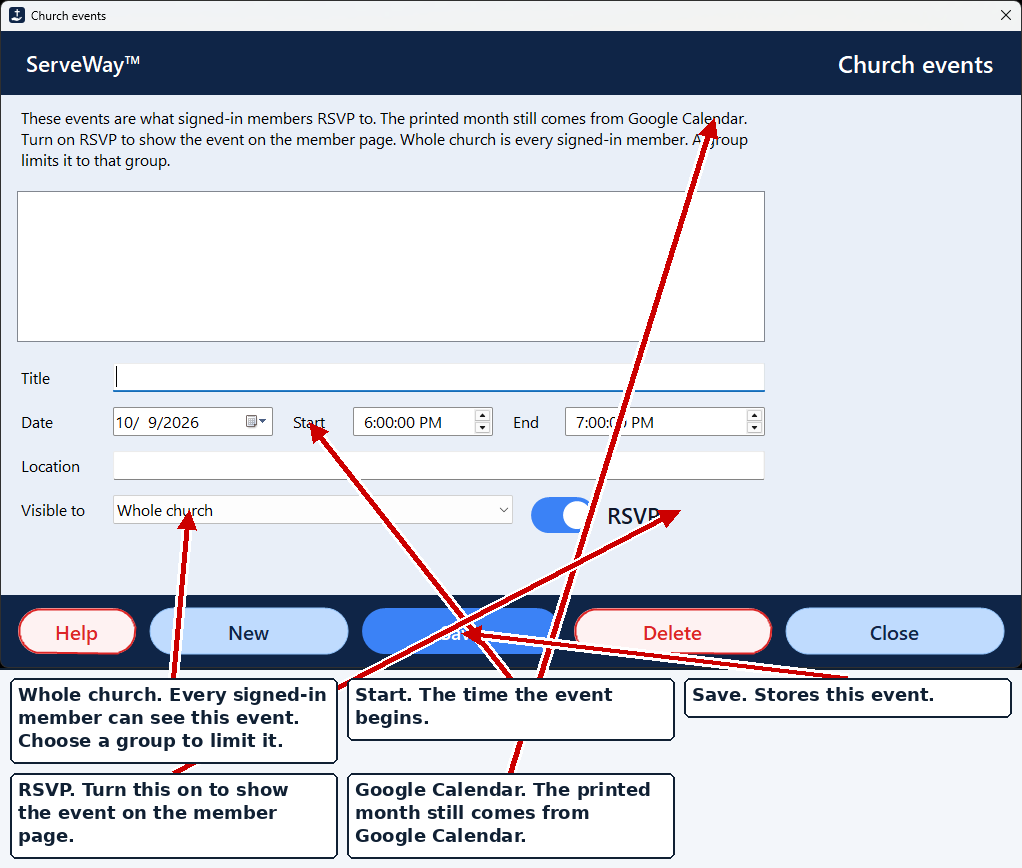
Church events form. RSVP shows the event on the member page. Whole church means every signed-in member; a group limits who sees it. The printed month still comes from Google Calendar.
Events with RSVP on the member page
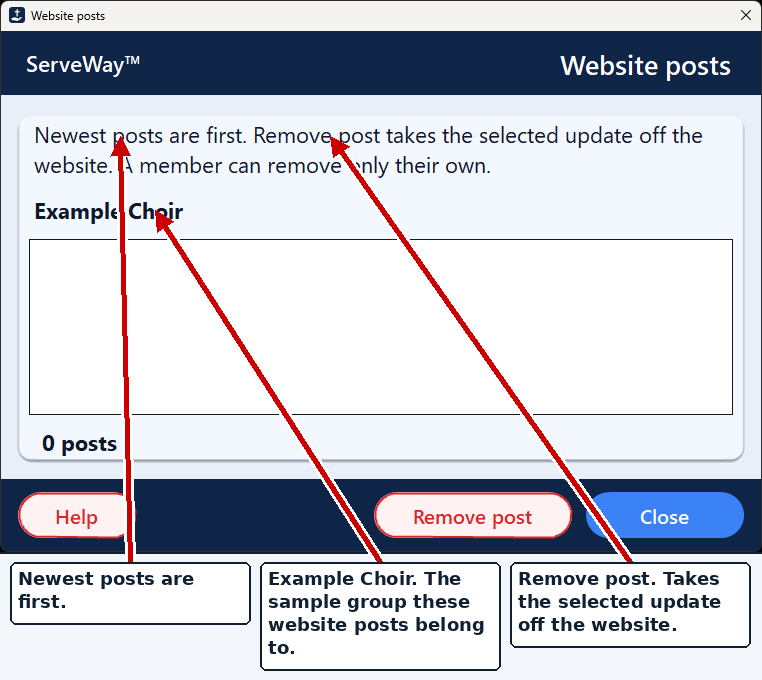
Website posts for the sample group Example Choir. Remove post takes the selected update off the church website.
Group posts on the church website

Church Directory

Your church directory, always current. Family photos, households, phone numbers and addresses stay up to date in ServeWay™, and you can print a directory whenever you need one. Signed-in members can browse the directory on the church website and update their own household information. Each member chooses what appears in the directory, from just a name and an optional photo to full contact information and address.

How it helps: No more chasing updates or reprinting outdated directories.
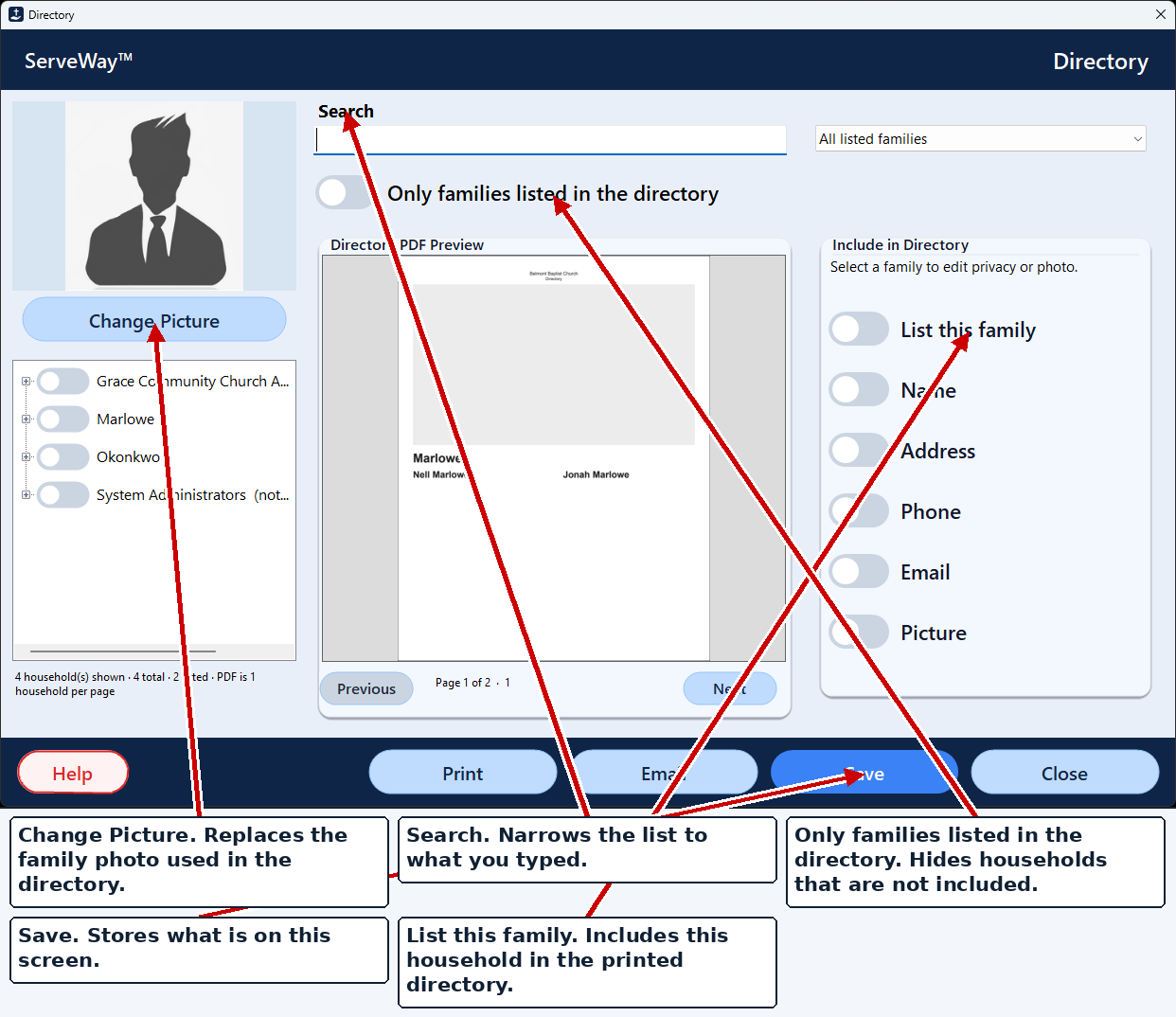
Church directory for the Grace Community Church demo, with the fictional Marlowe and Okonkwo households, List this family, and a directory PDF preview.
Church Directory with a printable PDF
  1. Member sign-in
  2. Search
  3. Household card

One click puts Sunday’s service on the website

When the stream ends, press Save Stream To Website. ServeWay™ reads the pastor’s sermon form for the title, scripture, and date, uses the speaker named on the form, and finds Sunday’s sermon notes and announcements PDFs. Staff check it, then one click on Upload to Church Website sends it all.

  • Sermon video (MUX.com recording, or YouTube / Facebook / Vimeo watch page)
  • Title, date, speaker, service type
  • Scripture references and verse text
  • Thumbnail picture, made by AI (if your church has an AI service) or picked from online or a local file
  • Sermon notes PDF and announcements PDF

How it helps: Posting Sunday’s sermon goes from typing every detail into the website to a quick check and one click.

No paid sermon plugin needed. The ServeWay™ plugin has its own sermon library, so there’s no JetEngine ($75 a year) to buy. See ServeWay™ for WordPress
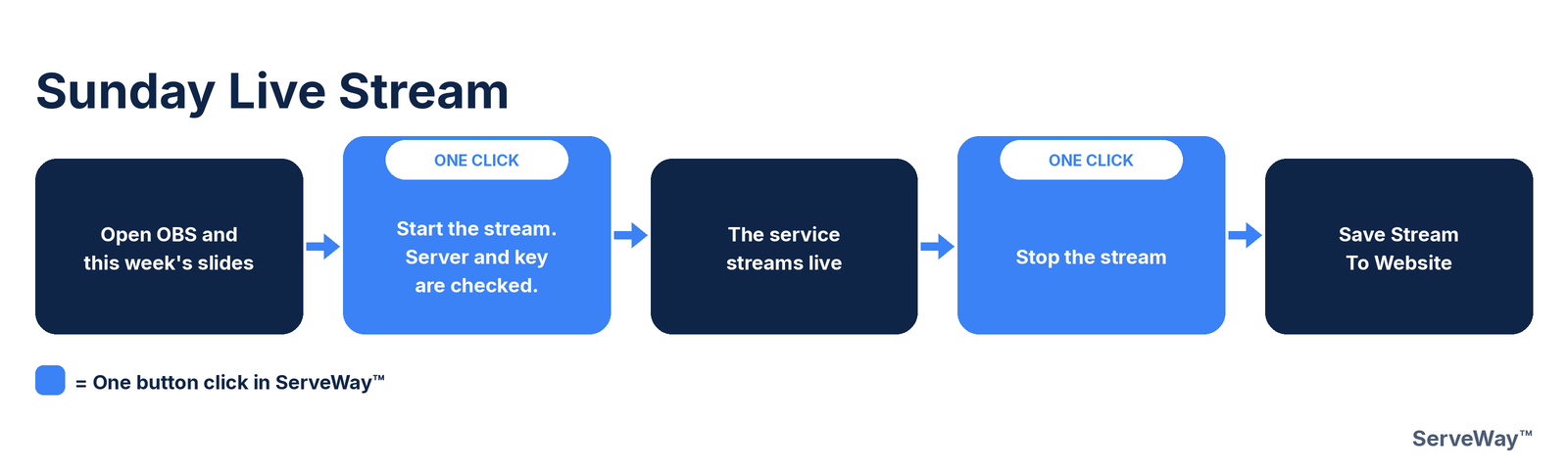
Diagram of the Sunday live stream: open OBS and this week's slides, the service streams live, then one button uploads the sermon to the website.
Sunday service to the website in one click

A week with ServeWay™

Monday

The pastor’s sermon form arrives. One click on Generate Word And PowerPoint makes the slides and handout.

Diagram of sermon notes becoming slides: the pastor submits the sermon form, then one button adds the PowerPoint to the presentation app.

Tuesday

Website prayer requests come in with Read Emails. Approve them, then Generate Prayer List PowerPoint.

Diagram of prayer requests from the kiosk, this PC, or the website going onto a PowerPoint with one button.

Wednesday

The youth leader’s Fellowship Hall request is in the Approval Queue. Approve it: it shows on the calendar and lobby display.
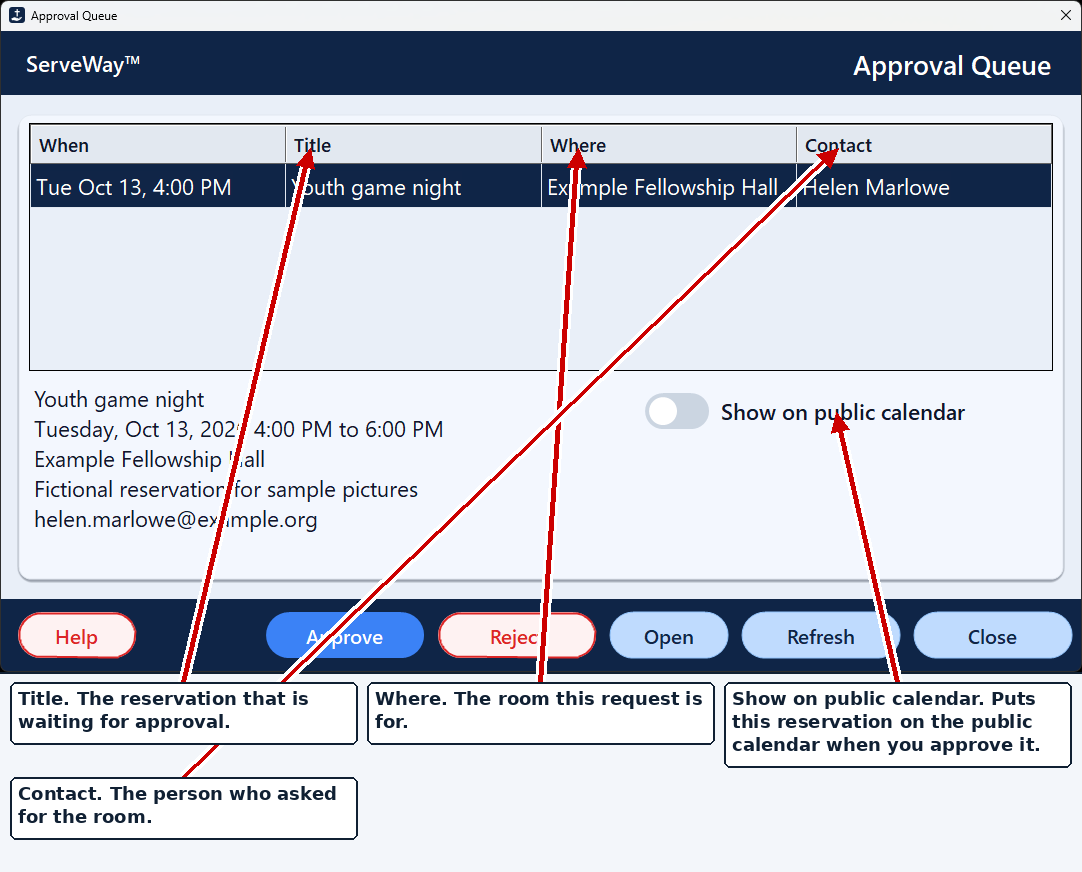
Approval queue with a pending fictional reservation, Youth game night, for Example Fellowship Hall, and Show on public calendar.

Thursday

Create Announcements builds slides and handout. Upload PDF to Church Website puts it online. Events are pulled in real time from the church’s Google Calendar, the same calendar shown live on the website and in ServeWay™.

Friday

Choir rehearsal moved? One message to the choir group by text, email, and voice.
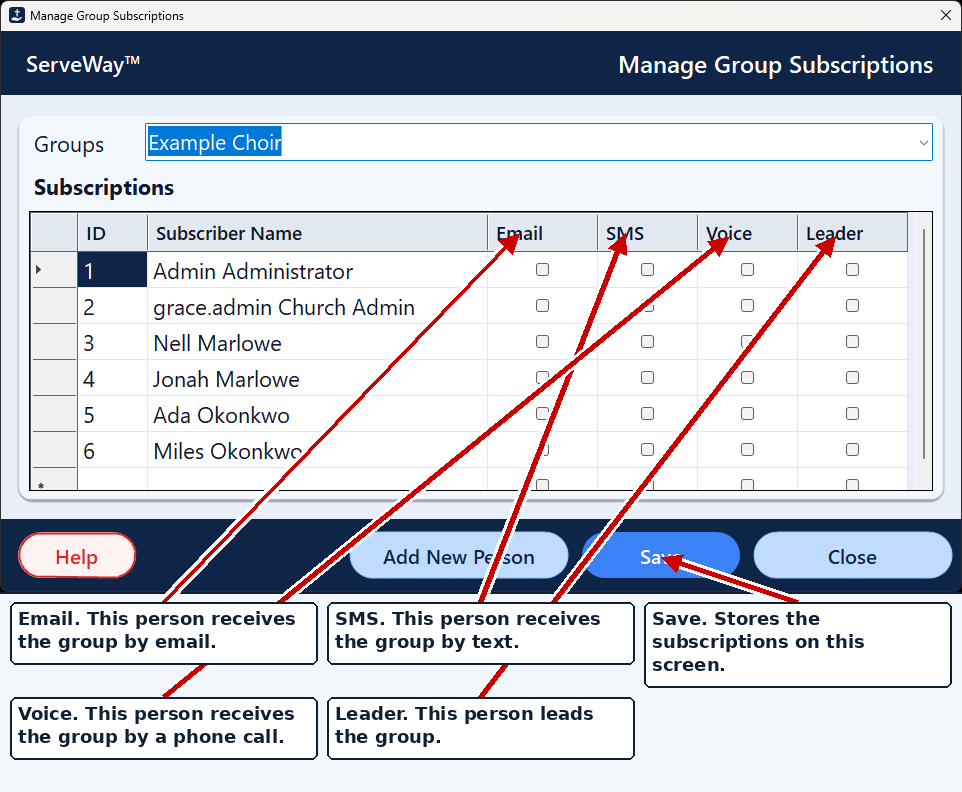
Subscriptions for the fictional Example Choir. Email, SMS, and Voice choose how each person receives that group.

Saturday

The stream volunteer opens Live Stream. The right stream key is already in OBS.

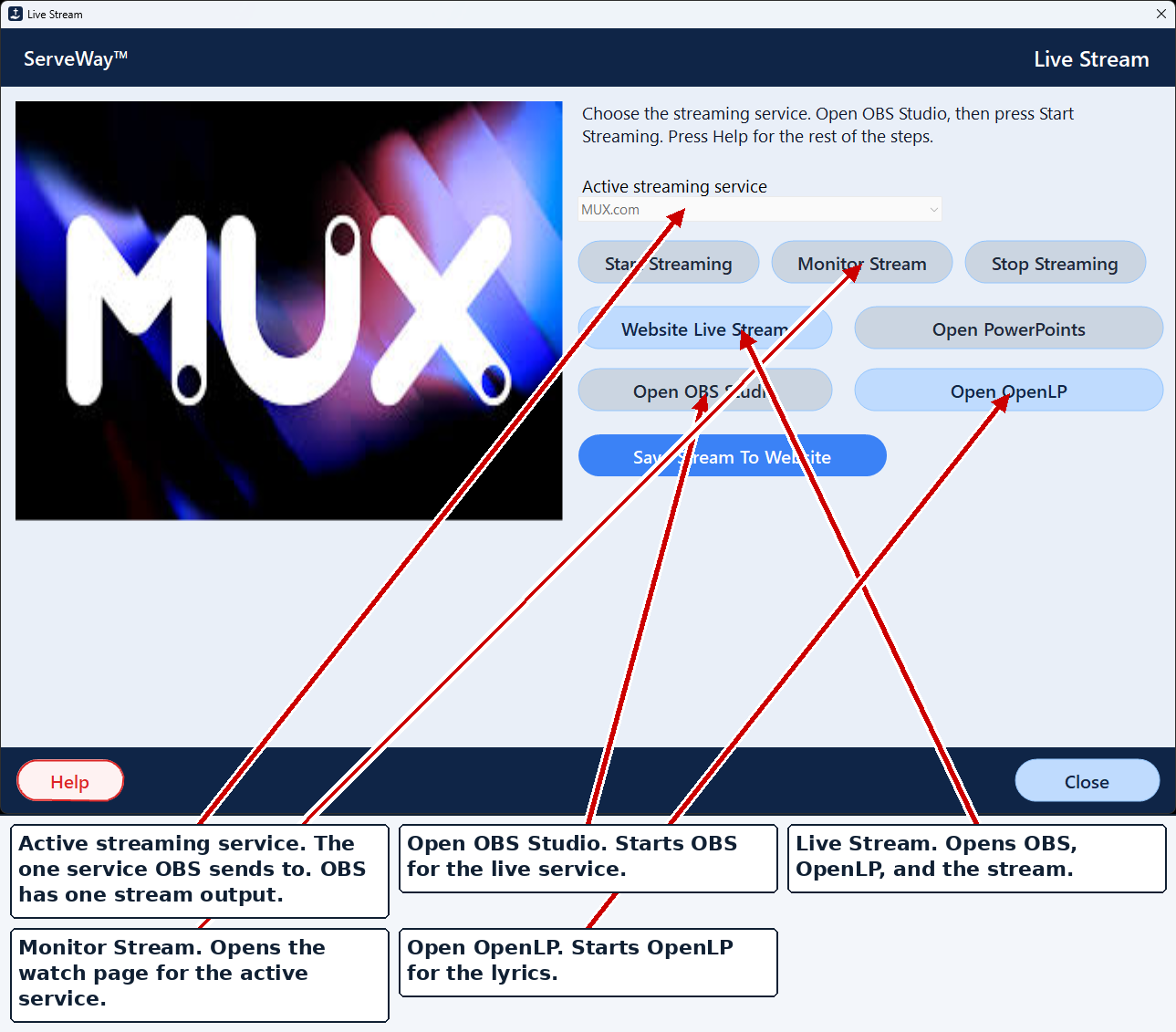
Live Stream window with MUX.com as the active service, and buttons for Monitor Stream, Open OBS Studio, and Open OpenLP.

Sunday

Children checked in with matching labels, the service streams, and one click puts the sermon on the website.

Diagram of the Sunday live stream: open OBS and this week's slides, the service streams live, then one button uploads the sermon to the website.

Church calendar & facilities, with an Approval Queue and lobby display

Request the Fellowship Hall or a classroom with the title, purpose, head count, and times. It waits in the Approval Queue until staff approve it, then it is written to the facilities calendar, and to the public calendar when Show on public calendar is checked. A lobby touch screen can show the calendar all day.

How it helps: No double-booked rooms. A changed booking goes back for approval automatically.

Approval queue with a pending fictional reservation, Youth game night, for Example Fellowship Hall, and Show on public calendar.
Facilities Approval Queue
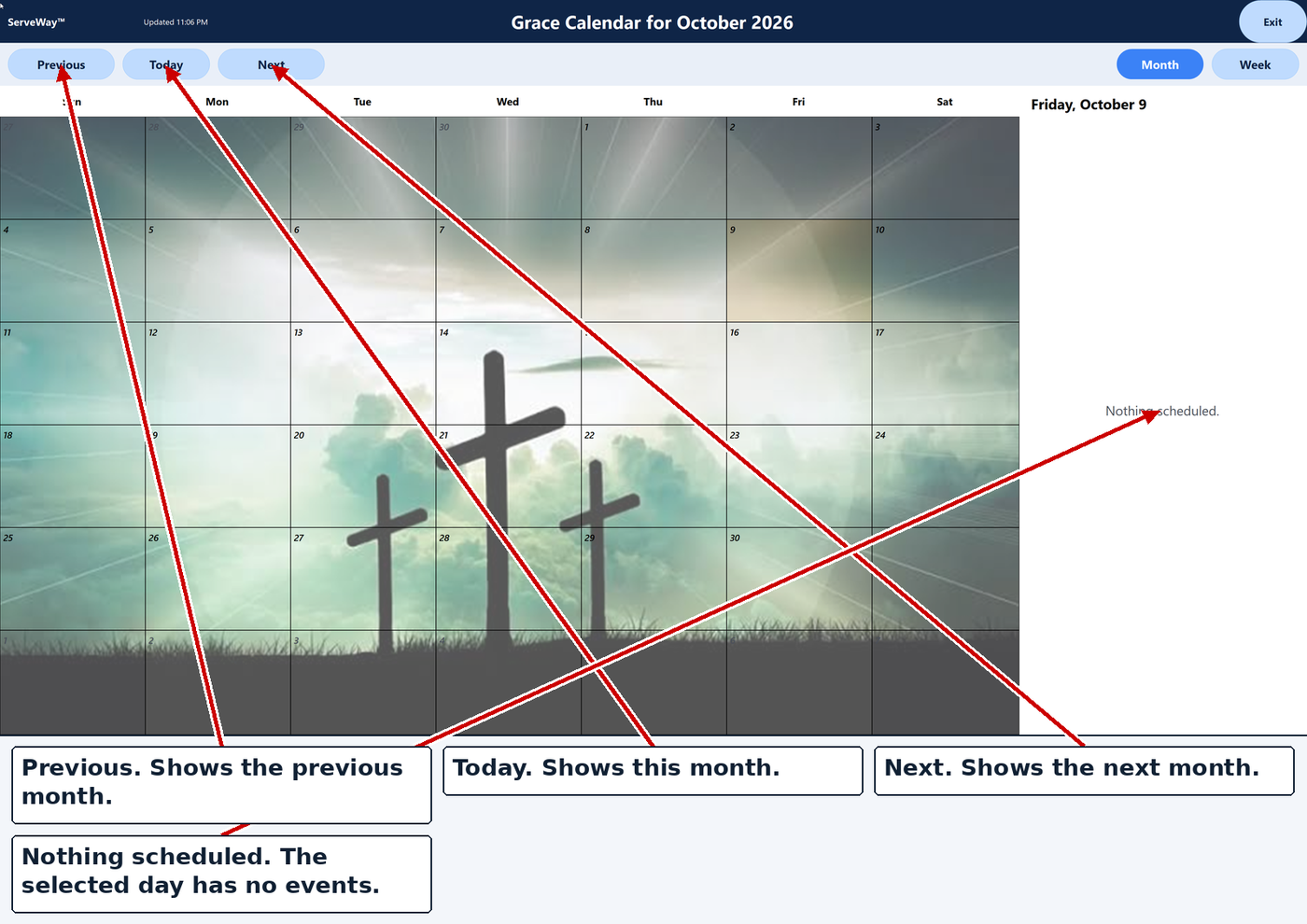
Grace Community Church lobby calendar for October 2026, with previous and next month controls. The selected day has nothing scheduled.
Lobby wall calendar

Child check-in with labels and authorized pickups

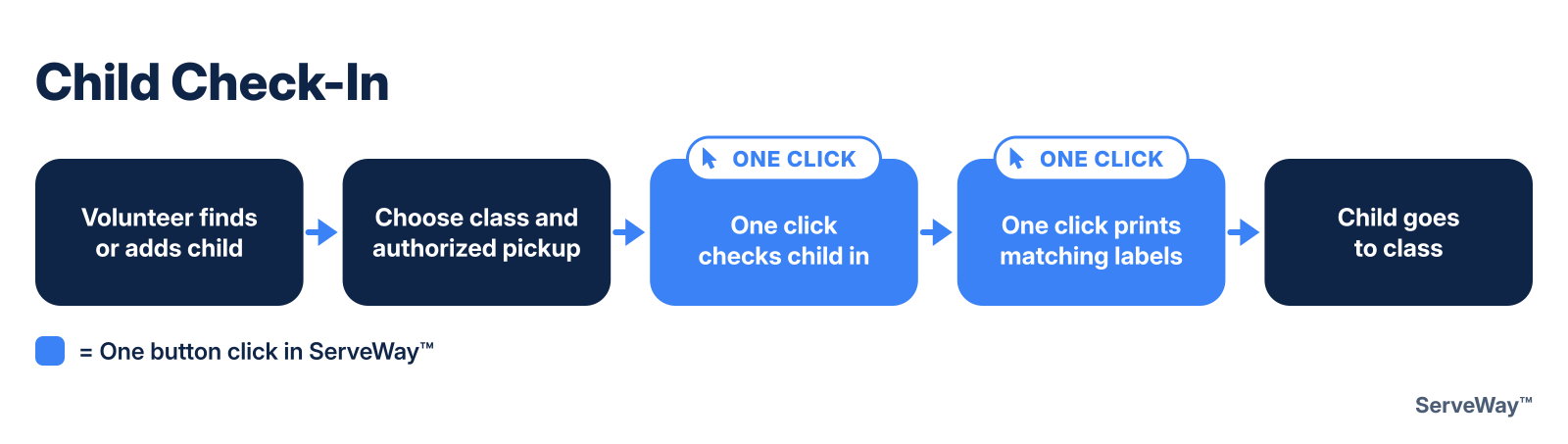
Type two letters of a child’s name and tap the child. Allergies, medical notes, photo, class, and pickup adults fill in from last time. One click checks the child in with a six-digit matching number; one more prints a child label and a pickup label.

How it helps: Faster lines at the door, and each child goes home with the right adult.

  1. Two letters and returning children pop up
  2. Allergies and Medical on the same screen
  3. Print Child & Pickup Labels with matching number
  1. Name, relationship, optional photo
  2. Volunteer sees who may pick up, with photo

Live streaming with guided OBS setup

ServeWay™ works with the free OBS Studio program to stream to MUX.com, YouTube, Facebook, or Vimeo. Guided setup asks which services you use, then ServeWay™ writes the right server address and stream key into OBS and checks it again right before the stream starts.

How it helps: The stream volunteer never copies a stream key into OBS.
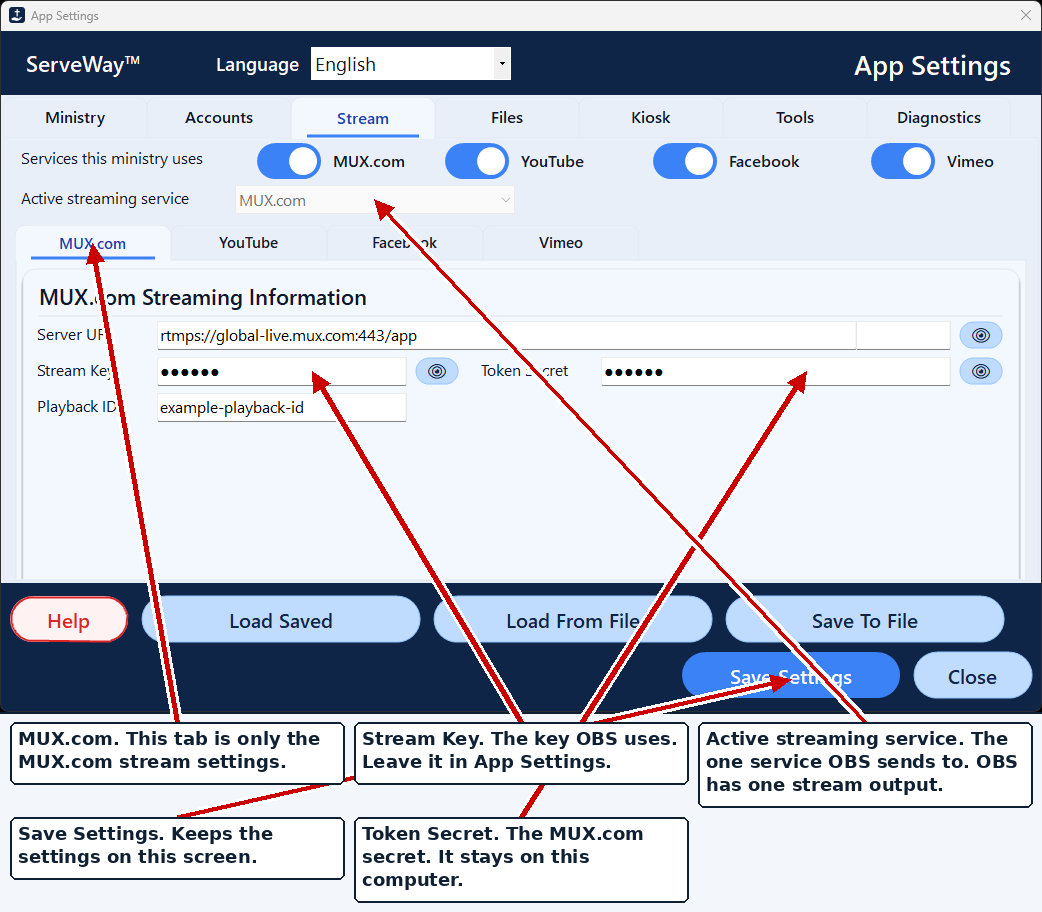
MUX.com tab on App Settings. The server address is the public MUX.com live address. The stream key and token secret are hidden. The playback id is the sample value example-playback-id.
Streaming service settings (MUX.com)
Live Stream window with MUX.com as the active service, and buttons for Monitor Stream, Open OBS Studio, and Open OpenLP.
Live Stream window

Who it helps

  • Sunday slides and handouts built from forms already filled out
  • Facility requests wait in one Approval Queue, not in emails and voicemails
  • After the service, one click puts the sermon, scripture, and PDFs on the website
  • Year-end giving statements built from the offering records
  • Check-in: two letters, tap the child, print the labels
  • Stream: the stream key is put into OBS for you
  • Greeters: register a guest and print a name tag
  • Big buttons and an on-screen keyboard for the lobby touch screen
  • Sign in on the church website to see the directory and prayer list
  • Send a prayer request from the website form
  • See what’s happening on the lobby and church calendars
  • Get messages by email, text, or phone call

People

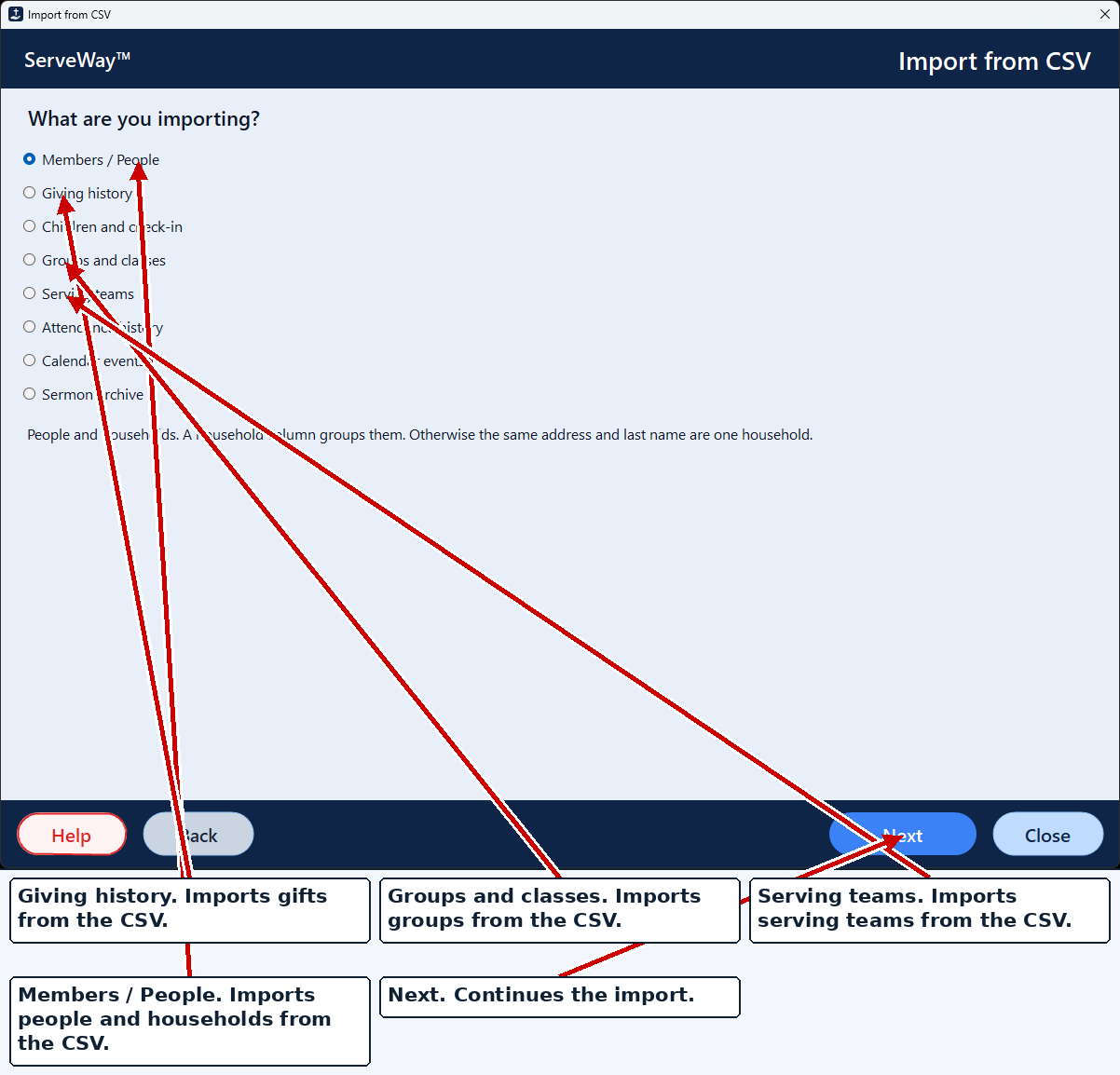
Keep every member, family, and visitor in one list with phones, emails, and households. Bring your member list in with Import from CSV instead of entering names one by one.

How it helps: A family’s address is entered once and used for check-in, the website, and notifications.
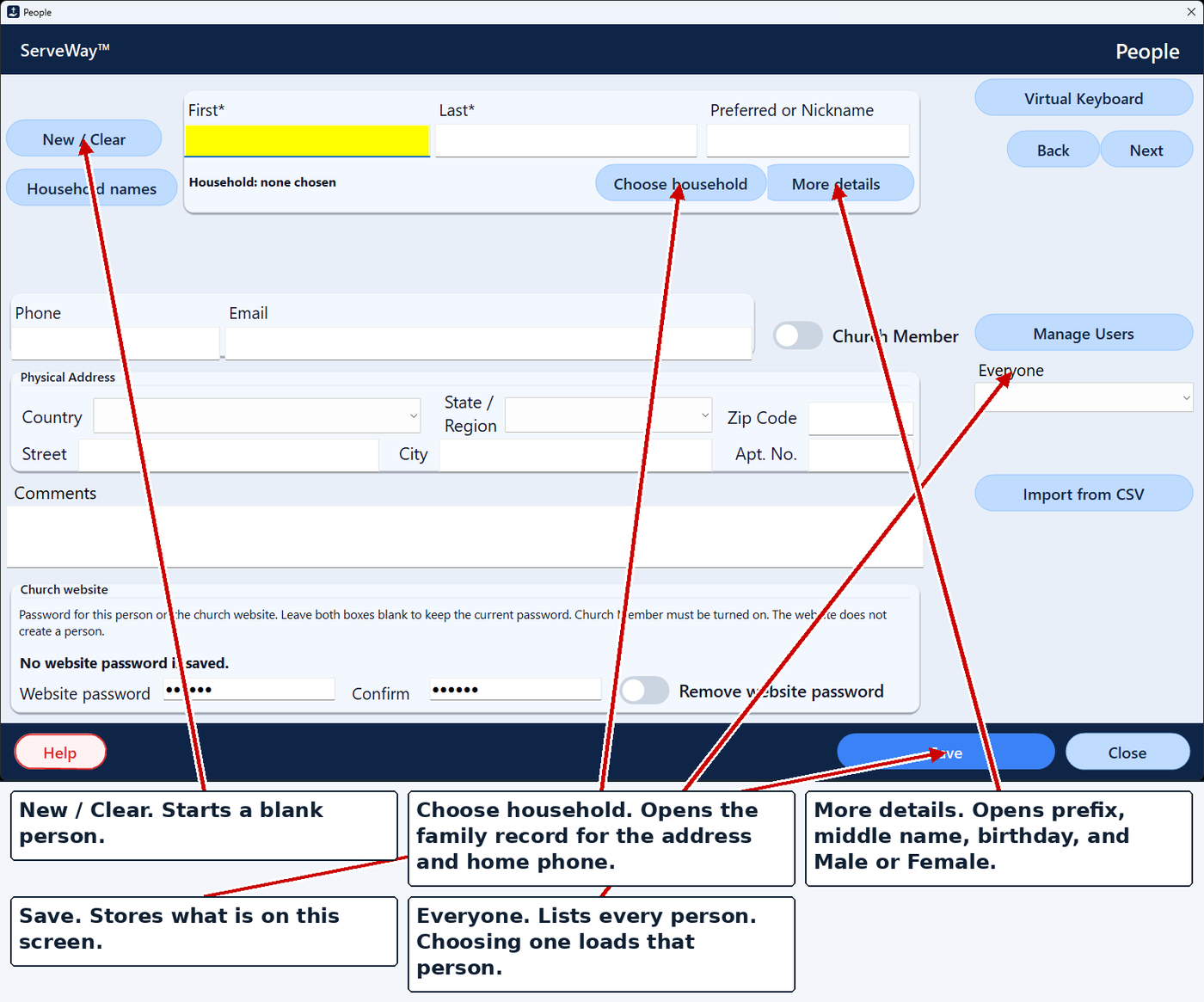
People form with New / Clear, Choose household, More details, and Everyone. No person is filled in.
People
Import from CSV. Members / People is selected, with giving history, groups and classes, and serving teams as other choices.
Import from CSV

Notifications by email, text, and voice

Type a message once and send it to the choir, the deacons, Sunday School teachers, or everyone. Each person can get email, text, voice, or any mix. Voice can be your own recording or typed text read aloud.

Send from the ServeWay™ app on your PC, or from a bookmarked web form on your smartphone.

It handles what churches count on services like One Call Now for: planned events, last-minute changes like weather closings, and prayer requests, sent by email, text, or voice to the groups you choose.

Your church controls the call flow and the branding, so messages come from your church’s own number and voice. Sample call flows are available from ServeWay™ to get you started.

How it helps: A snow-day closing reaches everyone in one send, the way each person prefers.

Requires a Brevo account for email (free for up to 300 emails a day; more needs a paid Brevo plan) and a Twilio account for texts and voice calls (Twilio charges per text and per call). Those services bill the church directly.

Compared to services such as One Call Now, savings can be substantial, over 50% in some cases. One church paid almost $1,000 a year and estimates about $350 a year with ServeWay™, Twilio, and a free Brevo account, based on its usual calls and texts.
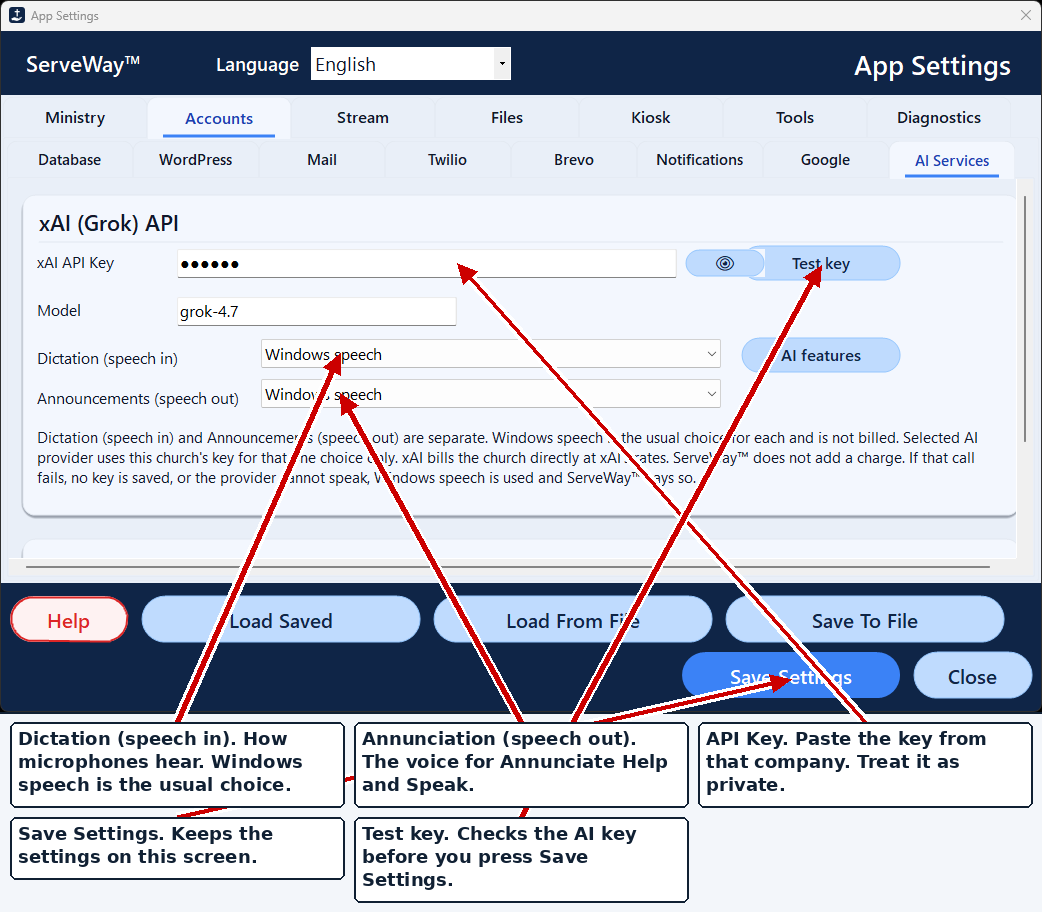
App Settings account tabs include Twilio and Brevo. This view is the AI Services tab. The API key box is hidden.
Twilio and Brevo accounts in App Settings
Subscriptions for the fictional Example Choir. Email, SMS, and Voice choose how each person receives that group.
Group subscriptions: email, SMS, voice

And much more

Click any feature to learn more.

Visitor registration

Mark guests present and print a name tag.

Sunday School

Classes, teachers, attendance roll, reports.

Offering

Scan checks; it suggests giver, amount, check number, fund.

Optional AI check reading

Reads a blank amount. Bank and account numbers are not sent.

Tithely import

Online gifts come in, skipping any already imported.

Year-end statements

Preview, print, save, or email.

Expenses

Reimbursement requests and a printed report.

Monthly calendar

Pick a month and print it.

Contact requests

Saved for staff follow-up.

Roles & permissions

Each person sees only their areas.

Features on/off

Hide areas your church doesn’t use.

Ask ServeWay™

Optional AI help that answers from the manual.

Voice interface

Spoken help, welcome messages, and dictation.

Label printer setup

Choose printer and label size once.

Four languages

English, Spanish, Portuguese, and Korean in the app and plugin.

Pay once. No monthly bill for the ServeWay™ application.*

ServeWay™
Price$99 one time*
Cost over 3 years$99
Free trial45 days

Runs on Windows 11 Pro. Some features require Microsoft PowerPoint and Word.

* The ServeWay™ license is a one-time purchase. Optional services are billed monthly by those providers if your church chooses to use them: Twilio for text and voice notifications, an AI company for AI features, and paid database hosting, including Hosted by ServeWay™.

Included with your site

Your site comes with a Member Area

Members sign in to one Member Area on your church website. Everything in it feeds the same ServeWay™ records your staff already use, so there’s nothing to copy over and nothing to keep in sync.

Church Directory

Members find each other’s contact details, kept up to date from ServeWay™.

Prayer Requests

Members share requests and see the church prayer list.

Events RSVP

Members say they’re coming, and staff see the count in ServeWay™.

Groups

Members see the groups they belong to.

Serving

Members see where and when they’re serving.

NEWCanvass

Team leaders see their streets on a phone and tap each door’s result. Prayer and visit requests go straight into ServeWay™ as Prospects.

Polls

Ask members a question and see the answers.

Church Calendar

Members see what’s coming up at church.

Class Count

Teachers enter attendance from a phone.

Member Documents

Files that only signed-in members can open.

Safe, simple sign-in

Members sign in with their name and password. The website uses the same two-step sign-in setting as the ServeWay™ app: if a person turned on two-step sign-in in the app, the website asks for their authenticator code too, after their name and password are correct. Same login, same protection, on both.

The code box appears only after a correct name and password, and only for people who turned on two-step sign-in. If a member gets locked out, your staff can reset them.

Member pages come with the ServeWay™ app and need your ServeWay™ database hosted online (Hosted by ServeWay™ or with a third-party hosting provider). A database on a single PC can’t power member pages.

Try the member features

Try it on your church’s own computer.

Free for 45 days. Then $99, one time. ServeWay™ runs on Windows 11 Pro.

Download the free 45-day trial

Run your church Off Grid

ServeWay keeps working when the internet doesn’t, and it works for churches that never go online at all. Maybe your church doesn’t have internet, or you’d rather keep your members’ information off it for privacy or other reasons. Either way, your people, check-in, offering, Sunday School, slides and church records live on your own PC or church server, so most of ServeWay runs without an internet connection. The chart below shows which features work with internet, on your church network only, or on a single PC that’s off the grid.

Things that truly need the internet, such as email, texts and live streaming, wait and catch up when you are back online, and ServeWay tells you plainly when you are offline.

WorksPartlyNo

FeatureInternetChurch network onlyOff Grid PCNotes
Starting ServeWay and signing in
Database on this PC (local database)WorksWorksWorksFully offline. Startup checks the database (8-second limit) and goes straight to sign-in.
Church's own database server on the church networkWorksWorksPartlyWorks whenever the server PC is reachable on the church network. A truly isolated PC can only use its own database.
Database hosted by ServeWay (and the built-in Belmont database)WorksNoNoNeeds internet. Offline, after 8 seconds the 'where is your database' chooser appears.
Hosted backups and restoreWorksNoNoBackups to the ServeWay server need internet.
New Church wizard, guided setup and feature setupWorksWorksWorksCreates the church and its database on the PC. Choosing a hosted database needs internet.
Choose church profile / Edit church profileWorksWorksWorksSaved on the PC and in the church database.
License, Enter License and 45-day trialWorksWorksWorksChecked on the PC. The registration report is saved and sent at a later start. Startup is never blocked.
Sign in with password, Change password, Require new passwordWorksWorksWorksChecked against the church database.
User Manager and Role Manager (who can see what)WorksWorksWorksDatabase only.
Second sign-in step: authenticator app or recovery codeWorksWorksWorksCodes are checked on the PC.
Second sign-in step: texted codeWorksSame as Off GridPartlyThe text cannot be sent offline. Use the authenticator app or a recovery code.
Second sign-in reminder emails (day 7 and 12)WorksSame as Off GridPartlyQueued and sent when the internet is back.
Two-step sign-in with the secret kept on the ServeWay server; recovery codes Print / Email / CopyWorksSame as Off GridPartlySetting it up needs internet. Recovery codes can be printed or copied offline; emailing them waits until the internet is back. Signing in with a code saved on the server needs internet; recovery codes still work offline if they are also kept on the PC.
Update checks and Check for updatesWorksSame as Off GridNoStartup check is skipped. Pressing Check for updates says 'You're offline'.
Google sign-in (for Calendar)WorksSame as Off GridNoOffline the sign-in window waits up to 2 minutes; Cancel is offered.
Kiosk mode, virtual keyboard, touch screen setupWorksWorksWorksRuns on the PC.
People and families
People list, Person record, Person pickerWorksWorksWorksDatabase only.
Families and household last-name reportWorksWorksWorksDatabase only, printed on the PC.
Church Directory (screen and printed)WorksWorksWorksMade on the PC.
Birthdays and anniversariesWorksWorksWorksDatabase only.
Take a picture (webcam / USB camera)WorksWorksWorksCamera is on the PC.
Staff, Deacons, Trustees, Teachers listsWorksWorksWorksDatabase only.
Visitation listWorksWorksWorksDatabase only.
Visitor registrationWorksWorksWorksSaved to the database.
Visitor welcome series (emails and texts)WorksSame as Off GridNoNothing goes out offline. Emails wait in the outbox and send when the internet is back.
CSV importer (bring in people and other lists from a spreadsheet file)WorksWorksWorksReads a file on the PC. No internet needed.
Milestones (baptism, membership and other dates on a person)WorksWorksWorksSaved in the church database.
Custom team tabsWorksWorksWorksSaved in the church database.
Contact requests and request detailsWorksSame as Off GridPartlySaved requests work. New requests from the website do not arrive offline.
Contact screen emailsWorksSame as Off GridPartlyRecords save. Email waits in the outbox with a clear 'will send when the internet is back' message.
Children's check-in
Child Check-In, arrivals and kioskWorksWorksWorksRuns on the PC and database.
Name tag and label printing (label printer)WorksWorksWorksPrinter is on the PC or church network.
Authorized pickups and unmatched childrenWorksWorksWorksDatabase only.
Nursery and pickup code displayWorksWorksWorksShown on screen.
Texting a parent from the parent pageWorksSame as Off GridNoSays plainly that there is no internet. Pickup code still shows.
Check-in headcount sent to the ProPresenter stage displayWorksWorksNoProPresenter is on the church network, so this works without internet.
Sunday School and attendance
Sunday School classes, rolls, visitors, classroomWorksWorksWorksDatabase only.
Sunday School reports and printingWorksWorksWorksMade on the PC.
Worship headcount entryWorksWorksWorksSaved on the PC. Sharing with the website waits for internet.
Sunday School class counts by phone (page behind the Member Area)WorksNoNoThe phone page is on the church website, so it needs internet. Counts can still be typed on the PC.
Worship headcount slide (Sunday School total + MUX.com unique viewers)WorksSame as Off GridPartlySunday School total works offline. MUX.com viewers shows a dash.
Offering, giving and expenses
Offering entry, cash and checks, fundsWorksWorksWorksWorks offline.
Reading scanned checksWorksSame as Off GridPartlyReading on the PC works. The AI help for hard-to-read amounts and fund splits needs internet.
Offering reports and printingWorksWorksWorksMade on the PC.
Giving statements (build, print)WorksWorksWorksMade on the PC. Emailing them waits for internet.
Tithe.ly gift syncWorksSame as Off GridNoNeeds internet. Importing a Tithe.ly file still works.
Tithe.ly file importWorksWorksWorksReads a file on the PC.
Expenses, expense requests, accounts, references, reports, export, printWorksWorksWorksRecords and reports work. Expense emails wait in the outbox.
Budgeting inside ExpensesWorksWorksWorksDatabase only.
Online giving with the church's own Stripe account (through ServeWay), Tithe.ly optionWorksNoNoGiving happens on the website. Gifts made while offline appear when the PC is back online.
Accountant page to pull giving recordsWorksNoNoA web page; needs internet.
Benevolence: website request form, approval queue and aid logWorksSame as Off GridPartlyAid log and approving saved requests work offline. New requests come from the website, so they need internet.
Calendar, events and rooms
Monthly Calendar (Word calendar, backgrounds)WorksSame as Off GridPartlyApp events and birthdays work. Google events missing offline. A friendly 'Google Calendar is unavailable offline' note.
Wall Calendar display, wall displays, themes, touch setupWorksSame as Off GridPartlyRuns on the PC. Google events are missing offline.
Church events and event sign-up (RSVPs)WorksSame as Off GridPartlyEvents save. Website RSVPs do not arrive offline.
Facilities, room reservations, schedule, approval, My reservationsWorksSame as Off GridPartlyReservations save. Google Calendar copy and approval emails wait for internet.
Year-ahead planningWorksWorksWorksDatabase only. Google Calendar copy waits for internet.
VBS and camp registration on the church websiteWorksNoNoFamilies register on the website. Saved registrations can be worked with offline.
Worship, slides and streaming
Announcements slidesWorksPartlyPartlyBuilt from the database. Offline: no Google events, website headcount, AI pictures or website upload. Viewer count shows a dash, not 0.
Announcements with a review of each slide before it is usedWorksPartlyPartlyReview works offline; pictures and website parts need internet.
Google Calendar events slidesWorksSame as Off GridNoNeeds Google Calendar online.
BulletinWorksWorksWorksMade on the PC.
Sermon Notes (writing, PowerPoint)WorksSame as Off GridPartlyWriting works. Reading sermon emails needs internet. Emailing notes waits in the outbox.
Prayer Requests list and slidesWorksSame as Off GridPartlyWorks. Website requests do not arrive offline. Email waits in the outbox.
Serving scheduleWorksWorksWorksDatabase only.
Worship planner with song libraryWorksWorksWorksDatabase only.
CCLI song use reportsWorksSame as Off GridPartlyReport is made on the PC. Sending it to CCLI needs internet.
ProPresenter playlist built automatically (writes ProPresenter files, talks to ProPresenter on the church network)WorksWorksPartlyWorks on the church network. On an isolated PC only the files are written.
Easy Worship fallback folderWorksWorksWorksFiles are written on the PC.
ProPresenter link (slides, messages)WorksWorksNoChurch network only; works without internet.
ProPresenter: move to next item in the service orderWorksWorksNoChurch network only.
Staff urgent alerts to the ProPresenter stage displayWorksWorksNoChurch network only.
OBS control (start/stop, scenes)WorksWorksNoChurch network only.
OBS gets the MUX.com stream key automaticallyWorksPartlyNoSending the saved key to OBS works on the church network. Getting a new key from MUX.com needs internet.
Live stream through MUX.com and the watch pageWorksNoNoNeeds internet.
Streaming to YouTube, Facebook or VimeoWorksNoNoNeeds internet.
Save a stream to the websiteWorksNoNoNeeds internet.
Media LibraryWorksSame as Off GridPartlyLocal files work. AI pictures and web picture search need internet.
Messages and notifications
Email blastsWorksSame as Off GridPartlyQueued in the outbox and sent when the internet is back, with a clear message. The screen stays usable.
Texts and voice callsWorksSame as Off GridNoCannot go out offline. Shows 'no internet' separately from a bad phone number.
Notification groups and group subscriptionsWorksWorksWorksDatabase only.
Group postsWorksSame as Off GridPartlySaved. Posting to the website waits for internet.
Email polls, campaign tracking, newsletter, sign-up pagesWorksSame as Off GridNoUse the website and email service; need internet.
Polls on the website (Member Area sign-in)WorksNoNoWebsite feature; needs internet. Results can be viewed offline once copied in.
Approval queue for website formsWorksSame as Off GridPartlySaved items can be approved. New forms and approval emails need internet.
Forms@ mailbox watcher (website forms, prayer, sermons)WorksSame as Off GridNoA visible 'Website forms are not arriving: offline' notice.
Conference minutesWorksWorksWorksDatabase only.
Church website and Member Area
Church Website buttonWorksSame as Off GridNoBrowser shows its own 'no internet' page. Opens without delay.
Church websites hosted by ServeWayWorksNoNoWeb hosting needs internet.
Member Area sign-in (shared password, member pages)WorksNoNoThe website must reach the church database.
Restricted documents (kept in the database; the website hides them from people not signed in)WorksNoNoServed through the website, so needs internet. Hidden documents show 'not found' to the public.
Website plugins: announcements upload, sermon list, notification audio, filtersWorksNoNoWebsite features.
Website backups and migrationWorksSame as Off GridNoNeeds to reach the website.
Writing, voice and help
Dictation (microphone buttons)WorksSame as Off GridPartlyWindows speech works offline. The AI option is skipped.
AI writing helper and Ask ServeWayWorksSame as Off GridNoNeed internet.
Read-aloud voicesWorksWorksWorksRuns on the PC.
Voice supportWorksSame as Off GridPartlyPC voices work; AI parts need internet.
Help screens and user manualWorksWorksWorksBuilt in. Web links need internet.
Feedback / bug reportWorksSame as Off GridPartlySaved on the PC. Queued to send later and the screen stays usable.
Automatic error reportsWorksSame as Off GridPartlyQueued and sent when online; a crash closes right away.
About ServeWay and About the ministryWorksWorksWorksBuilt in.
App Settings
Ministry information, logo, mission, what we believe, service timesWorksWorksWorksSaved on the PC.
File paths, backgrounds, PowerPoint foldersWorksWorksWorksOn the PC.
Database settings, create empty database, use built-in churchWorksWorksPartlyHosted and built-in choices need internet.
Save / load settings to a fileWorksWorksWorksOn the PC.
Email, text message, AI, Google Calendar, website and MUX.com account settingsWorksWorksWorksTyping and saving settings works offline; testing them needs internet.
OBS, ProPresenter and OpenLP settingsWorksWorksWorksSaved on the PC.
Label printer and check scanner choiceWorksWorksWorksOn the PC.
Kiosk mode, virtual keyboard and voice settingsWorksWorksWorksOn the PC.

Internet: PC connected to the internet. Church network only: no internet, but OBS and ProPresenter are on the church network. Off Grid PC: no internet, using the church database on this PC or a church server. “Same as Off Grid” means no difference.

Is ServeWay™ secure?

The ServeWay™ Security Summary explains how ServeWay™ protects your church’s data, staff access, and kiosks.

Download the Security Summary (PDF)