How the work flows
These ten pictures show how everyday church jobs move through ServeWay™, from start to finish. Each dark box is a step a person does. Each blue box marked ONE CLICK is a single button click in ServeWay™. The words under each picture explain the same steps in plain language.
1. Sermon PowerPoint
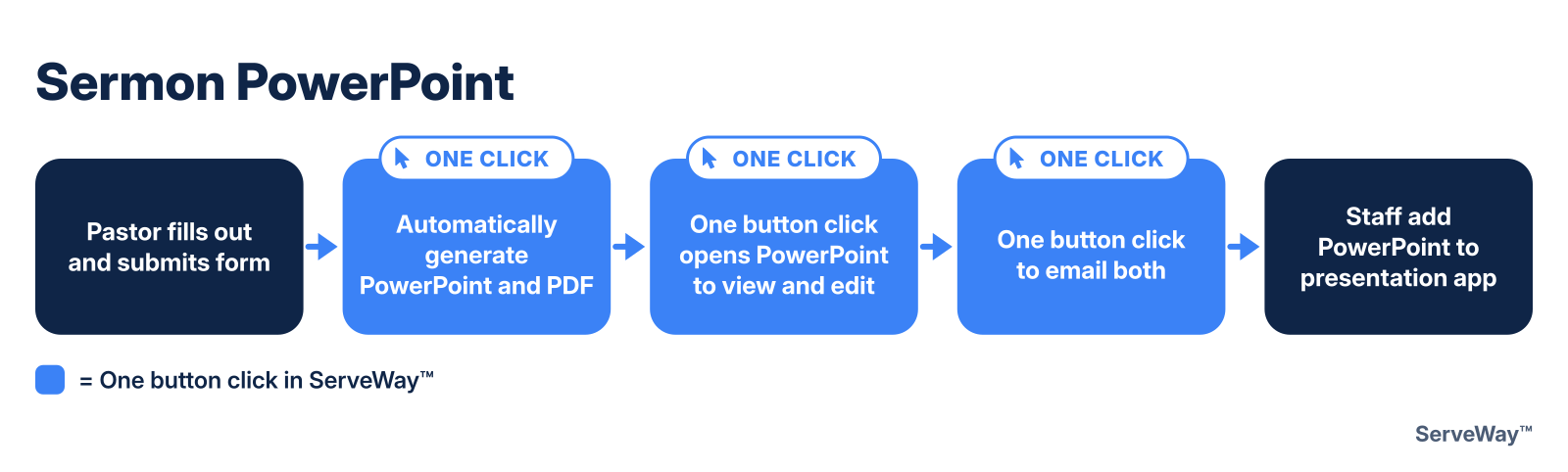
The pastor fills out a short sermon form on the church website with the title, date, scripture, and main points. At the church office, one button click in ServeWay™ turns that form into the sermon PowerPoint slides and a printable notes handout. Nobody has to retype the outline or build slides by hand.
One more click opens the PowerPoint to view it and make any minor edits, and another click emails the PowerPoint and the notes PDF to the church office. Staff then add the PowerPoint to the presentation program, such as ProPresenter, OpenLP, or PowerPoint, so it is ready for Sunday. A job that used to mean copying the outline into slides by hand now comes down to a few button clicks and a quick review.
Once the service is over, the sermon is just as easy to share online. ServeWay™ reads the pastor's emailed sermon form to fill in the title, scripture, and date, uses the speaker named on the form (or the Senior Pastor when none is given), and finds that Sunday's sermon notes PDF. After a quick check, one button click puts the sermon video, details, and notes on the church website.
2. Prayer Request PowerPoint
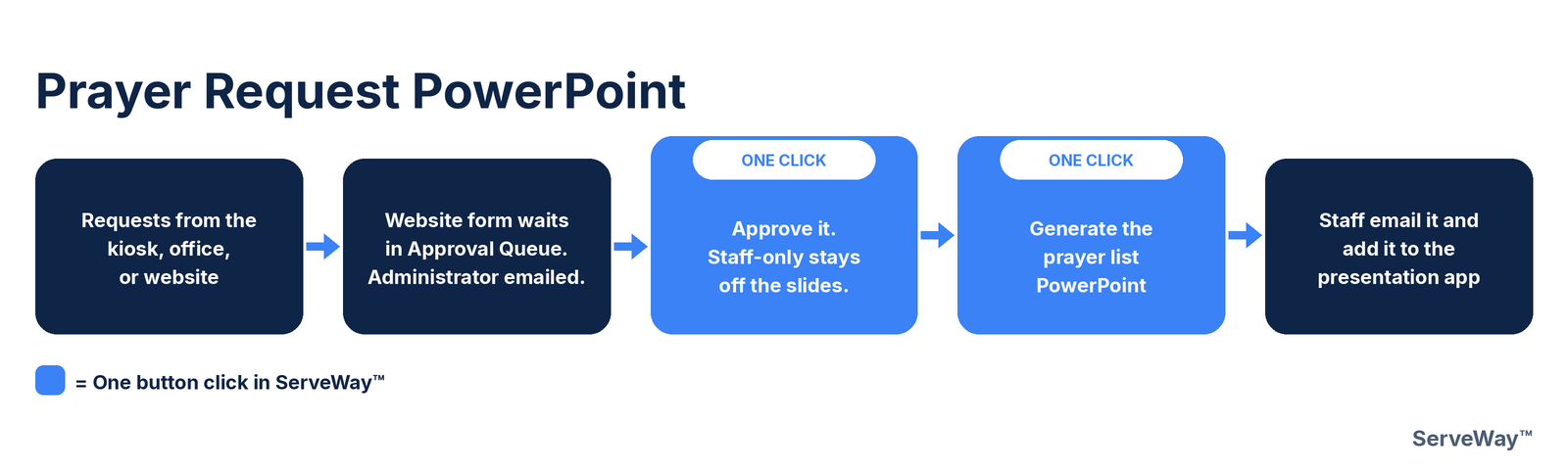
Prayer requests come in three ways: at the welcome kiosk, from staff on an office PC, or through the prayer request form on the church website. One button click brings the online requests into ServeWay™, and staff simply say yes to each new one, so nobody has to retype them. Requests marked staff only stay private and never go on the slides.
Next, one click builds the prayer list PowerPoint from every active request that should be shown, up to four per slide, set to loop before the service. After a quick look, one more click emails it to the church office, and staff add it to the presentation app. When a prayer is answered, marking it answered takes it off the slides.
3. Upload the Sermon to the Website
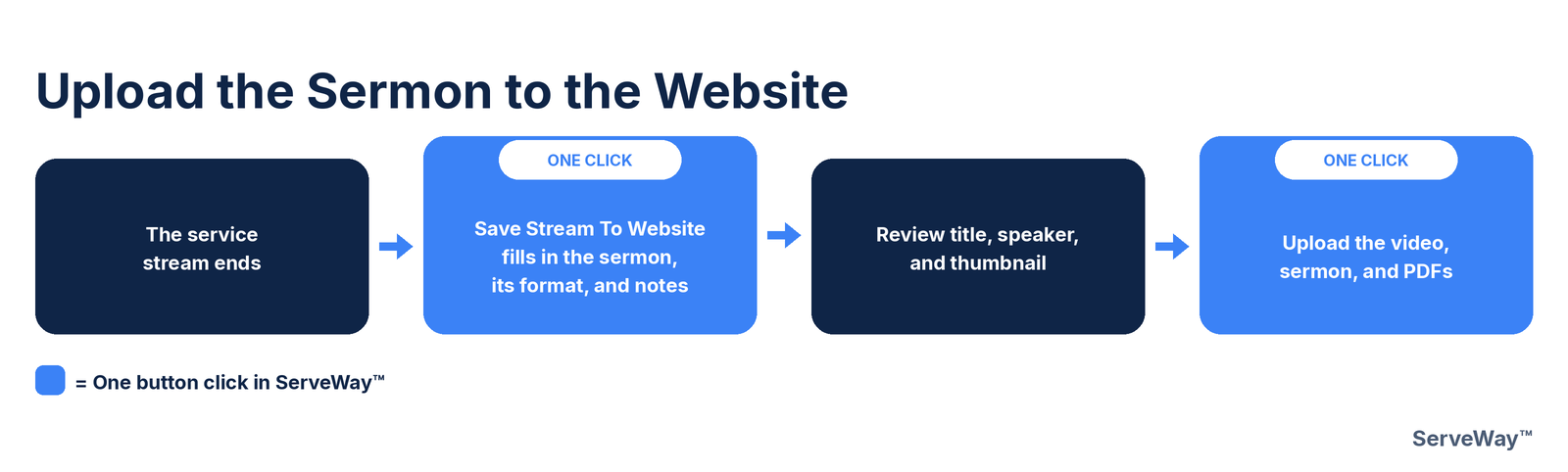
When the service stream ends, one button click opens Save Stream To Website, and ServeWay™ fills in the sermon details for you. It reads the pastor's emailed sermon form for the title, scripture, and date, uses the speaker named on the form (or the Senior Pastor), and finds that Sunday's sermon notes and announcements PDFs. If AI pictures are turned on, it also starts a thumbnail picture.
Staff check the title, speaker, and thumbnail, then one more click uploads it all to the church website: the video, the sermon details and scripture, the thumbnail, and the PDFs. Posting a sermon online no longer means typing everything into the website by hand.
4. Visitor Registration
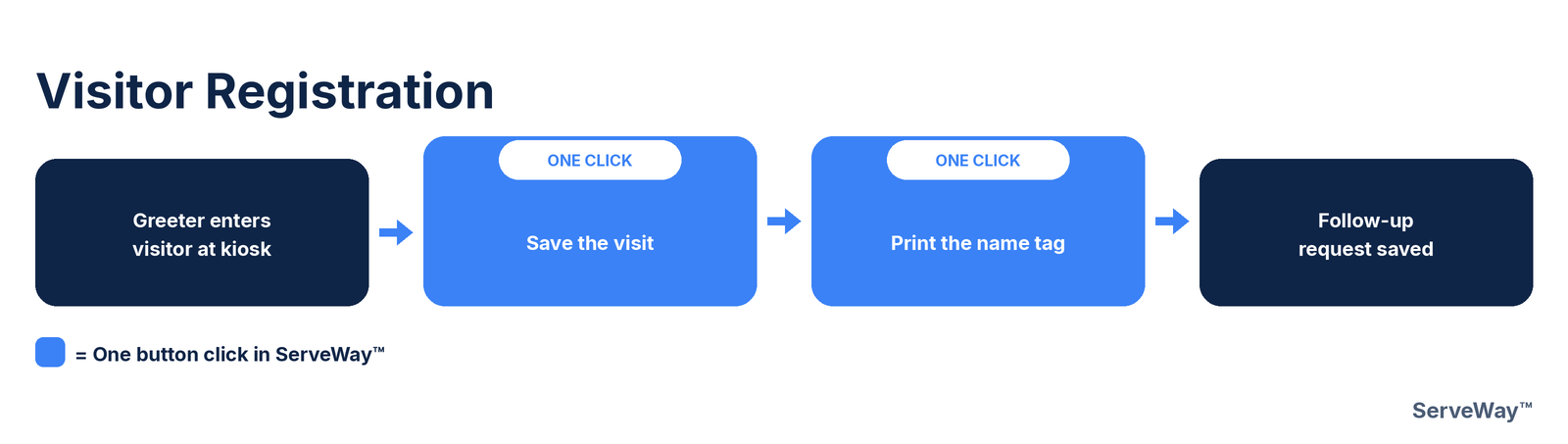
When a guest arrives, a greeter at the welcome kiosk (or office staff) types the guest's name. Returning guests pop up after a couple of letters, so their details fill in again. A new guest gets a household for their address, and phone and email are optional.
One button click marks the guest present and saves the visit, and another click prints a name tag with the church's welcome line. If the guest would like someone from the church to reach out, that Please Contact request is saved with the visit so staff can follow up.
5. Child Check-In
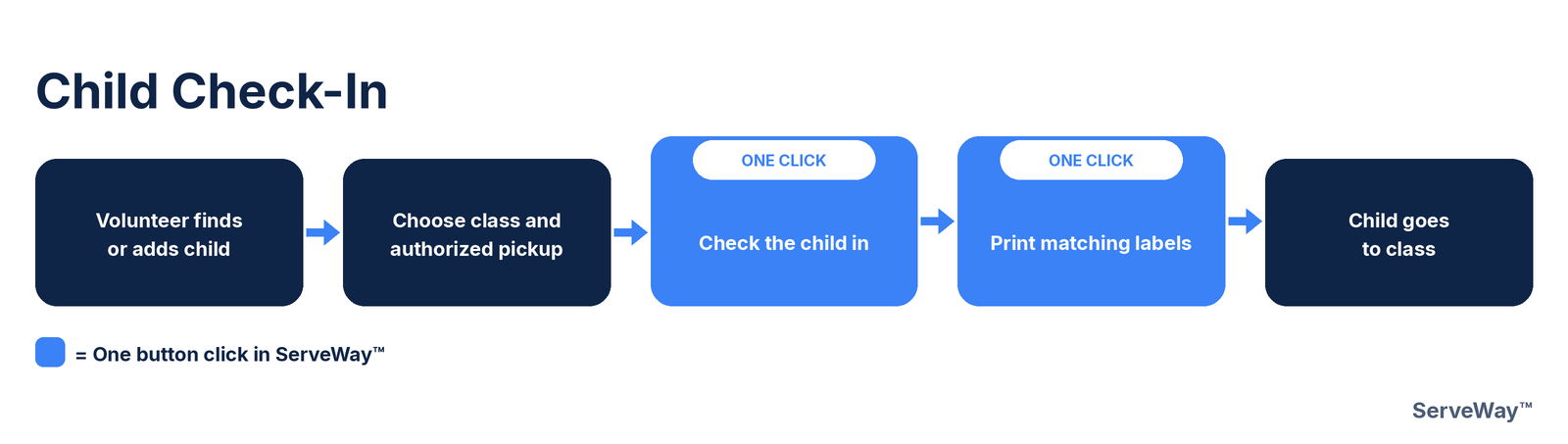
A check-in volunteer at the kiosk types the first letters of the child's name and taps the child. A returning child's details fill in again, including allergies, medical notes, photo, usual class, and the adults allowed to pick them up. A new child is added on the same screen.
One button click checks the child in and gives them a six-digit matching number. One more click prints two labels with that same number: one for the child and one for the parent to keep for pickup. The child heads to class, and everything is ready to fill in again next time.
6. Child Checkout
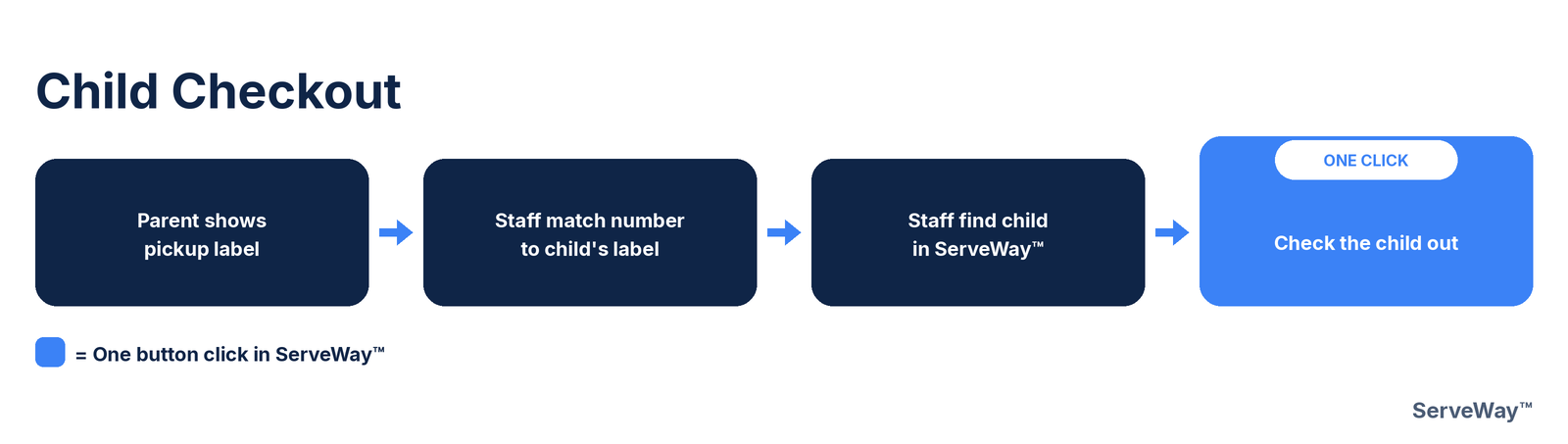
At pickup, the parent shows the pickup label they received at check-in. A volunteer compares its six-digit number with the number on the child's label to make sure they match.
The volunteer then finds the child in ServeWay™ by typing a few letters of the name. The button that said Check In now says Check Out, and one click records the time the child left. The child's authorized pickups are shown on the same screen, with a photo when one was taken, to help the volunteer confirm who is picking up.
7. Count the Offering
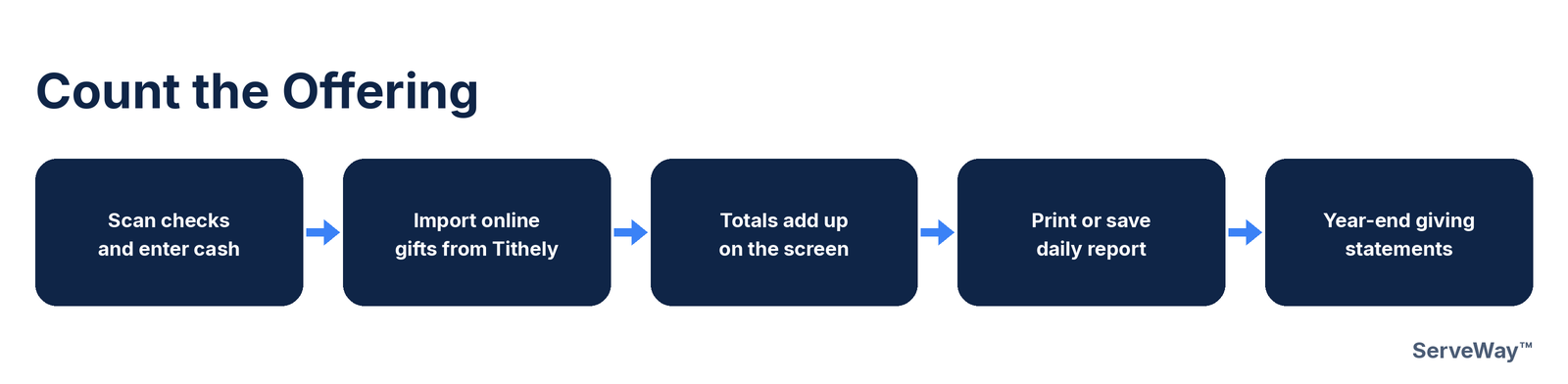
Counters lay each envelope and check on the scanner, and ServeWay™ suggests the giver's name, amount, check number, and fund for a quick confirm. Cash is entered by envelope or as loose cash, a gift can be split between funds, and online gifts come in from a Tithely file, skipping any already imported.
Totals for checks, cash, online gifts, and the grand total add up on screen as you go. The daily report can be printed or saved as a PDF, broken down by fund if you like. At the end of the year, ServeWay™ builds the giving statements to preview, print, save, or email.
8. Weekly Announcements
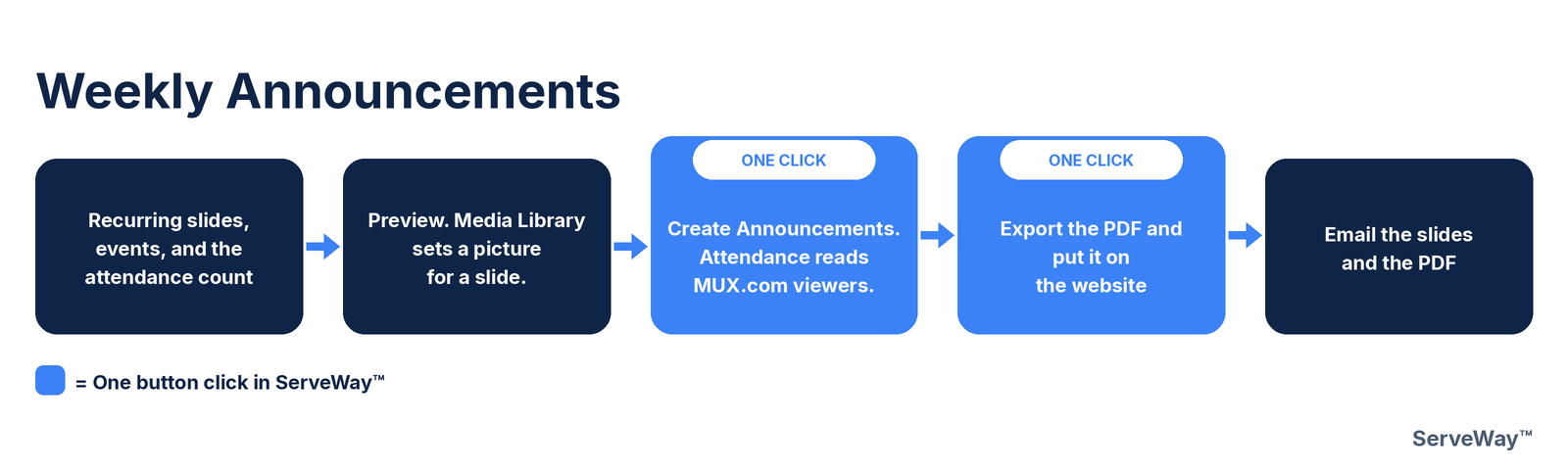
One button click builds the week's announcement slides from the church's template, along with a PDF handout. Staff just confirm the date and type last Sunday's attendance, and ServeWay™ fills in the upcoming meetings and events. When AI pictures are set up, it can even create pictures for some of the slides.
Staff look over the slides and make any changes in PowerPoint; after changes, one click on Export As PDF updates the handout. Then one click puts the PDF on the church website, and the slides and PDF can be emailed to the church office or any address.
9. Reserve a Facility
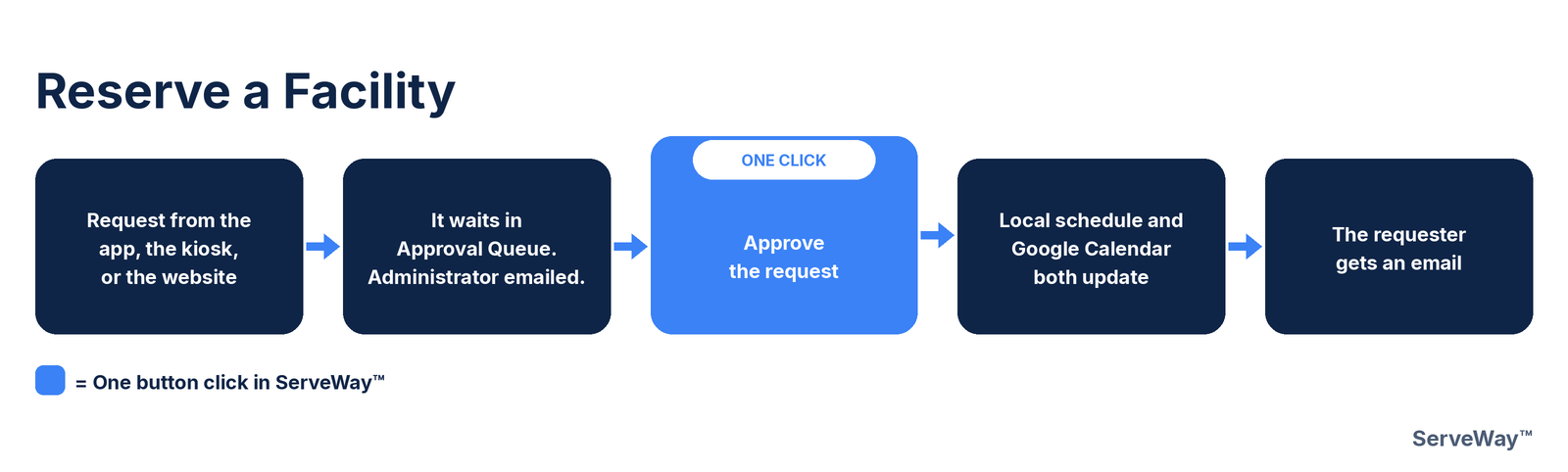
A room request can come from three places: staff in the ServeWay™ app, a signed-in member at the kiosk (what they can request follows their role permissions), or the ServeWay™ facility request form on the church website. Every request lands in the same approval queue, and the approvers get an email right away.
An approver opens the approval queue, picks the request, and one click approves it. ServeWay™ adds it to the facilities Google Calendar (and to the public church calendar only if that was chosen) and emails the requester. Rejecting asks for a short reason, which is emailed to the requester.
10. Sunday Live Stream
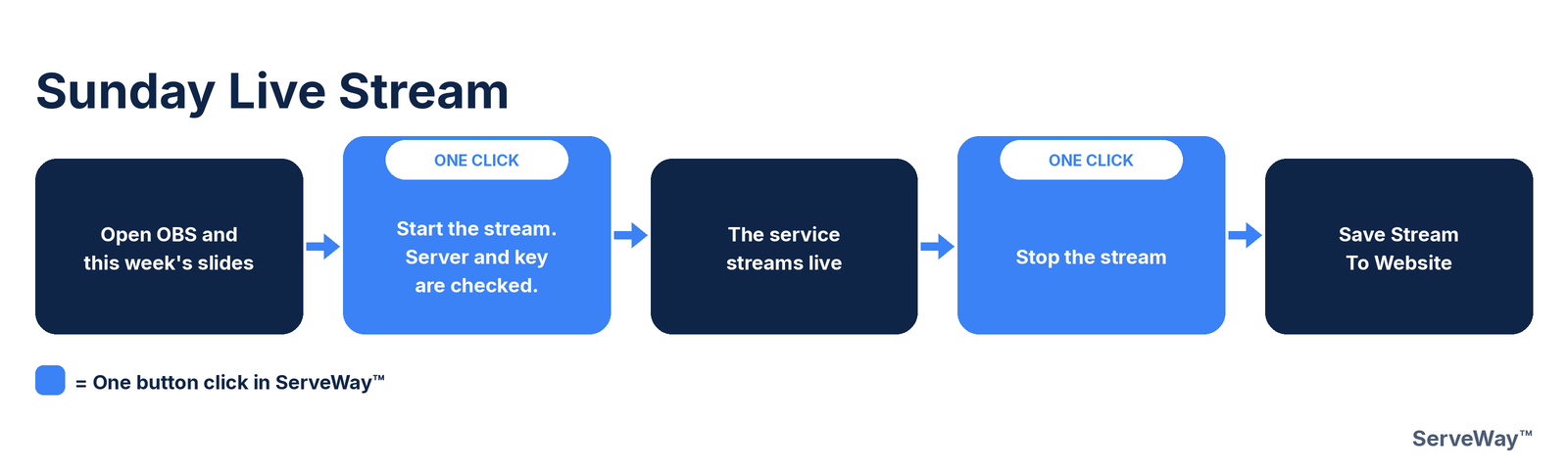
On Sunday, the media team opens OBS Studio from ServeWay™, and one click on Open PowerPoints opens this week's sermon, announcement, and prayer slides together. One button click starts the stream, and ServeWay™ first makes sure OBS has the right server and stream key, so nobody has to copy settings by hand.
During the service, staff can watch the stream and open the church's watch page from the same screen. When the service is over, one click stops the stream, and Save Stream To Website puts the sermon on the church website.
Member workflows
These fourteen pictures show the same kind of steps from a church member's side: what you do on your phone or the church website, and what happens next. Each dark box is a step a person does. Each blue box marked ONE CLICK is a single button click. Pictures marked Coming soon describe features that are not in ServeWay™ yet.
1. Check In My Children From My Phone (Coming soon)
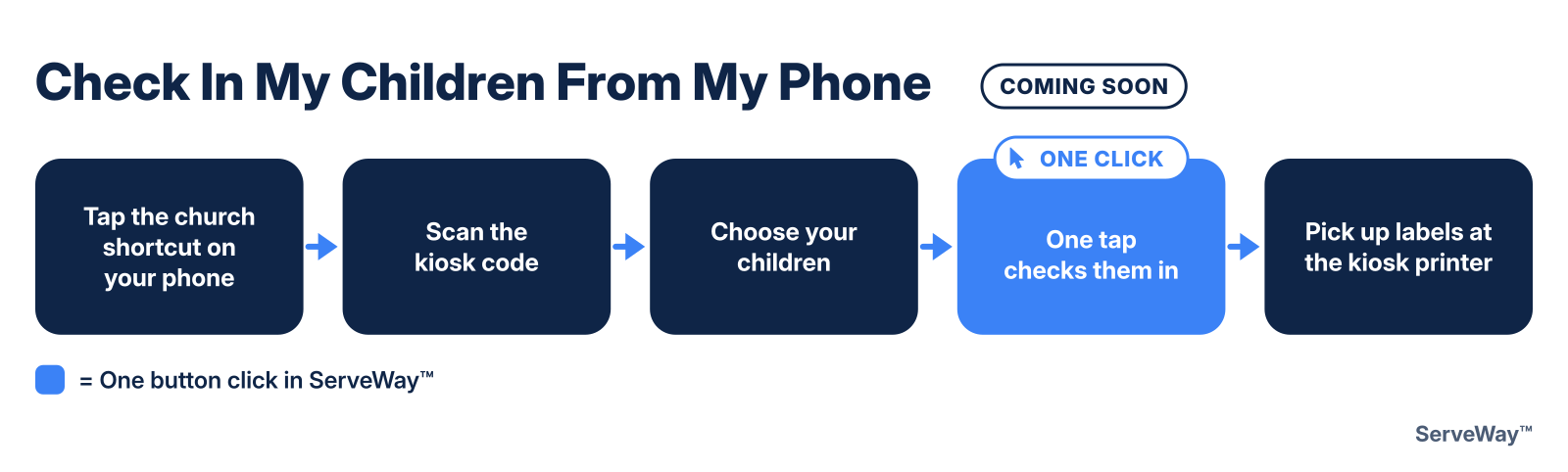
Coming soon. This is approved and planned, but it is not in ServeWay™ yet. Until it is ready, check children in at the kiosk the usual way.
When it is ready, you tap the church shortcut saved on your phone's home screen, and you stay signed in. Tap Scan the kiosk code and point your camera at the code on the kiosk screen. Your children appear with their room or class and their allergy notes so you can check them. Choose the children, tap Check in, and pick up the child labels and your pickup tag at the kiosk printer. Pickup works the same as today.
2. Sign In to the Member Area the First Time
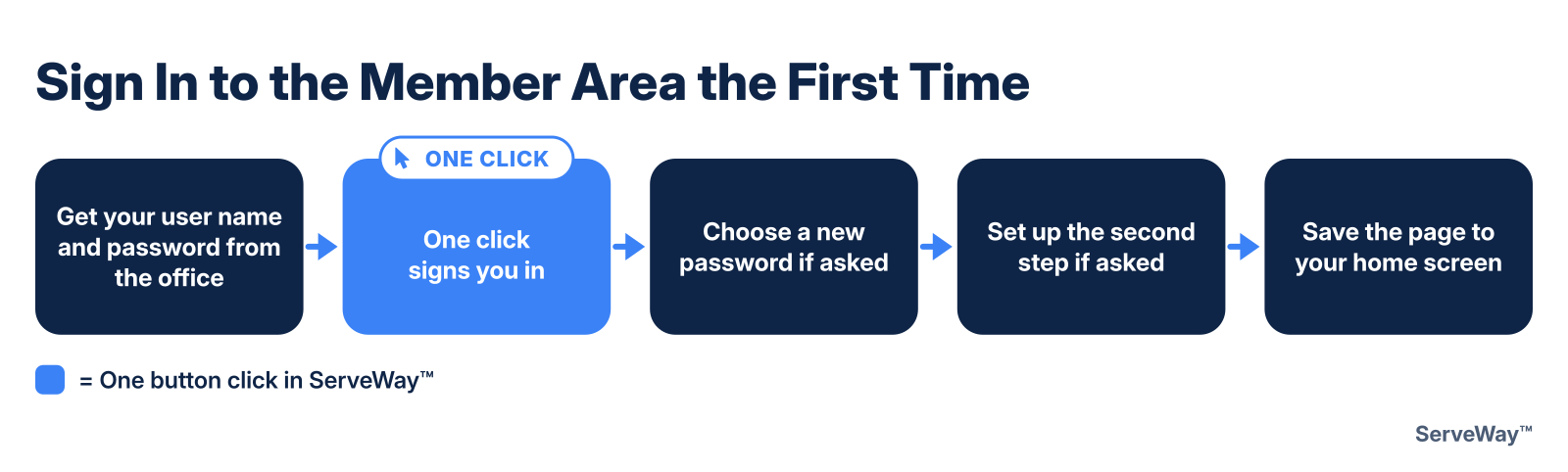
There is no sign-up form. The church office adds you in ServeWay™ and gives you a user name and password. It is the same sign-in used in ServeWay™ at church, and an email saved on your record also works as the user name. If you do not have one yet, the Request a member sign-in form on the Member page sends a request to the office.
On the Member page, type your user name and password and click Sign in. The first time, you may be asked to choose a new password. If your church uses a second step, add the key to an authenticator app on your phone, type the 6-digit code, and keep the recovery codes somewhere safe. You can also ask for a sign-in code by email. To keep the Member Area handy, open your browser menu and choose Add to Home Screen.
3. Update My Family's Information
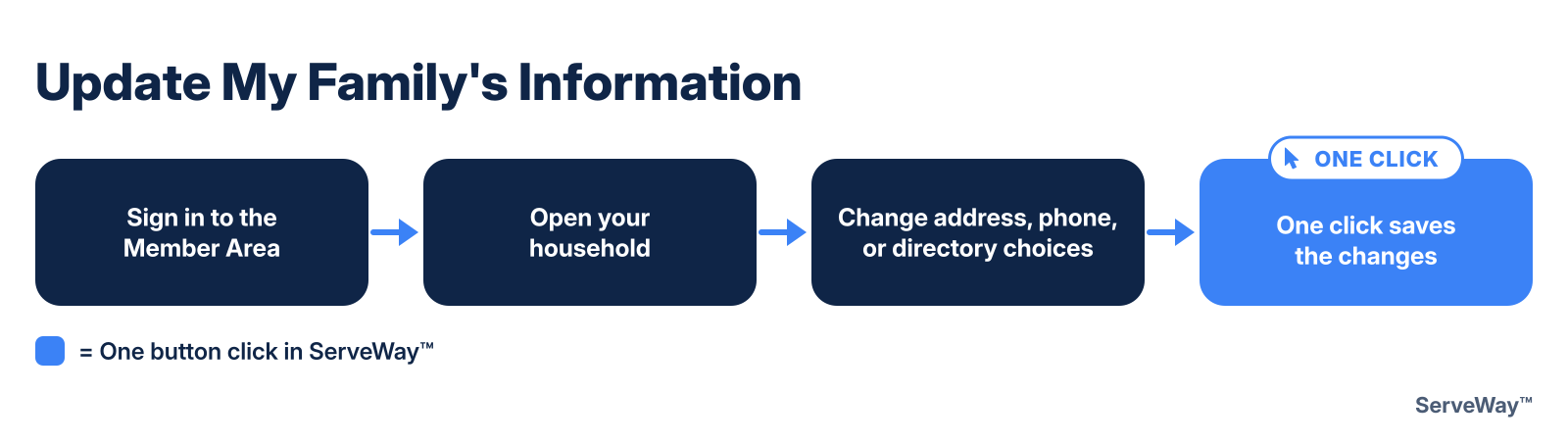
After you sign in, the Member page shows your household: the names, the children linked to it, and your contact details. An adult in the household can change the street address, city, state, zip code, country, and home phone, choose what the church directory shows, and choose whether to get the monthly newsletter by email.
Click Save contact information and the change goes straight into ServeWay™, so the office does not have to retype it. Names, children, allergy and medical notes, and authorized pickups cannot be changed on the website. To add a child or change allergy notes or who may pick up, ask the church office or a check-in volunteer.
4. Send a Prayer Request
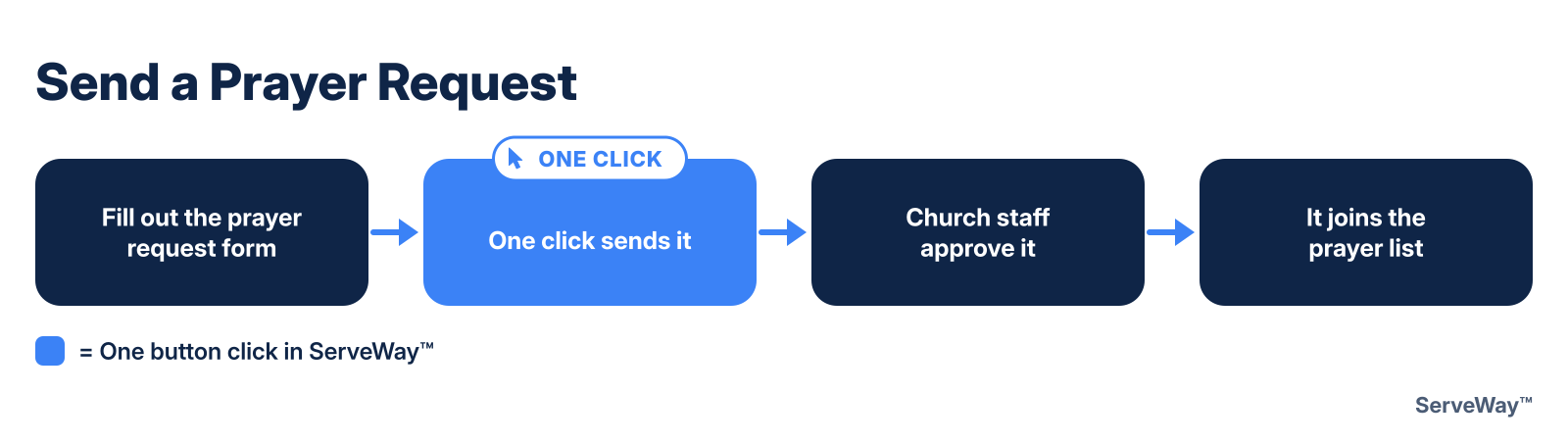
Open the prayer request form on the church website and write your request. You can mark it for church staff only. Click send, and the request is saved for ServeWay™. You do not need to call or email the office.
The request stays off the prayer list until church staff approve it. Once approved, it appears on the prayer list slides and on the prayer list signed-in members see on the website. Requests marked staff only stay private and never go on the slides.
5. Request a Room or Facility
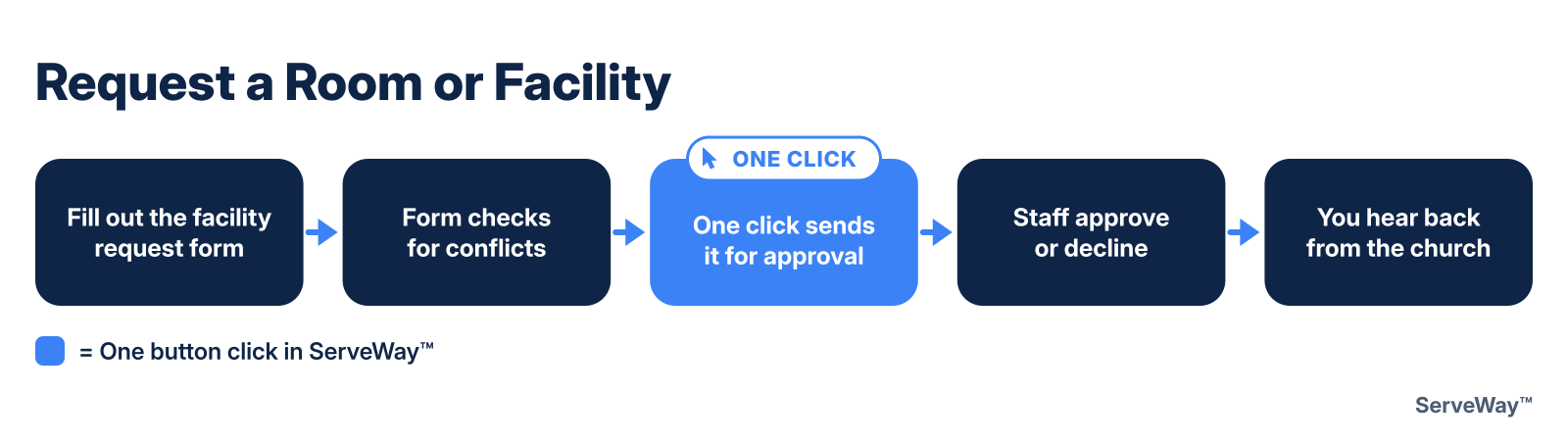
Open the facility request form on the church website. Some churches let anyone use it, and some ask you to sign in first. Choose the room or space, the date and time, and the event name, and say whether phone or email is the best way to reach you.
Before it is sent, the form checks the calendar. If the space is already booked, it tells you right away. If someone else has asked for the same time, or your group may be too big for the room, it warns you and you can send it anyway. The request is not on the calendar until a staff member approves it. Signed-in members can see their own requests and cancel one that is not yet approved.
6. Register My Kids for VBS or Camp
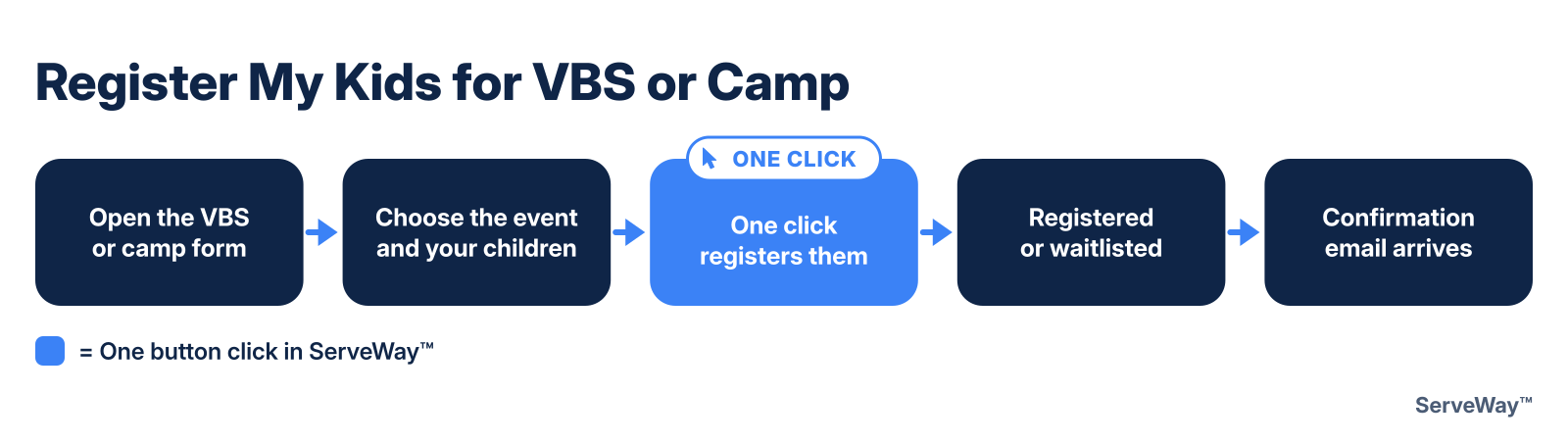
Open the VBS or camp form on the church website. You do not need to sign in, but if you are signed in, your details are filled in for you. Choose the event, add your children, and give a phone number or email address.
Click register. If a child's group still has room, the child is registered. If it is full, the child goes on the waitlist. A confirmation email follows. A fee only applies when the church turns one on for that event. Paying online is coming soon, so for now the church office collects any fee.
7. Sign Up to Volunteer and See My Schedule
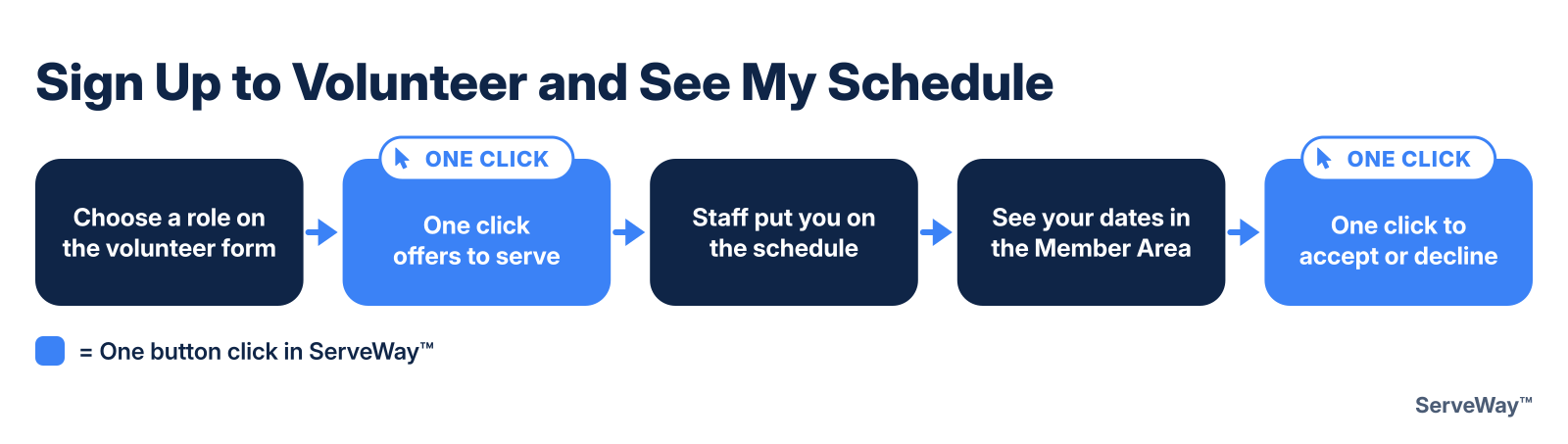
To help with VBS or camp, open the volunteer form on the church website, choose a role, and give a phone number or email address. One click saves your offer to serve, and the church office sees it in ServeWay™.
When staff put you on a serving schedule, sign in to the Member Area to see your upcoming dates and roles. Click Accept, or click Decline and add a short note so the office knows to find someone else. There is no swap button, so the office arranges any trade.
8. Give Online (Coming soon)
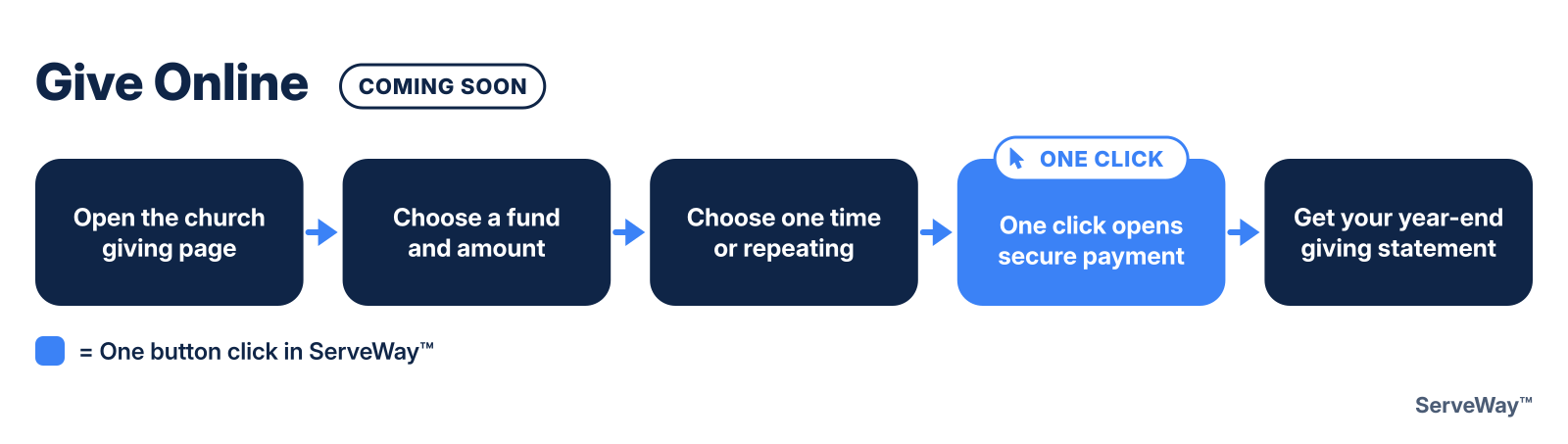
Coming soon. Online giving is built, but card payments are not turned on for churches yet. Until then, keep giving the way your church does today.
When it is ready, you open the giving page on the church website, choose a fund, type the amount, and choose a one-time gift or a repeating gift. One click takes you to a secure Stripe payment page, so your card number never touches the church website. The gift is recorded in ServeWay™ only after Stripe confirms it, and it shows on the year-end giving statement the church office sends.
9. Vote in a Church Poll
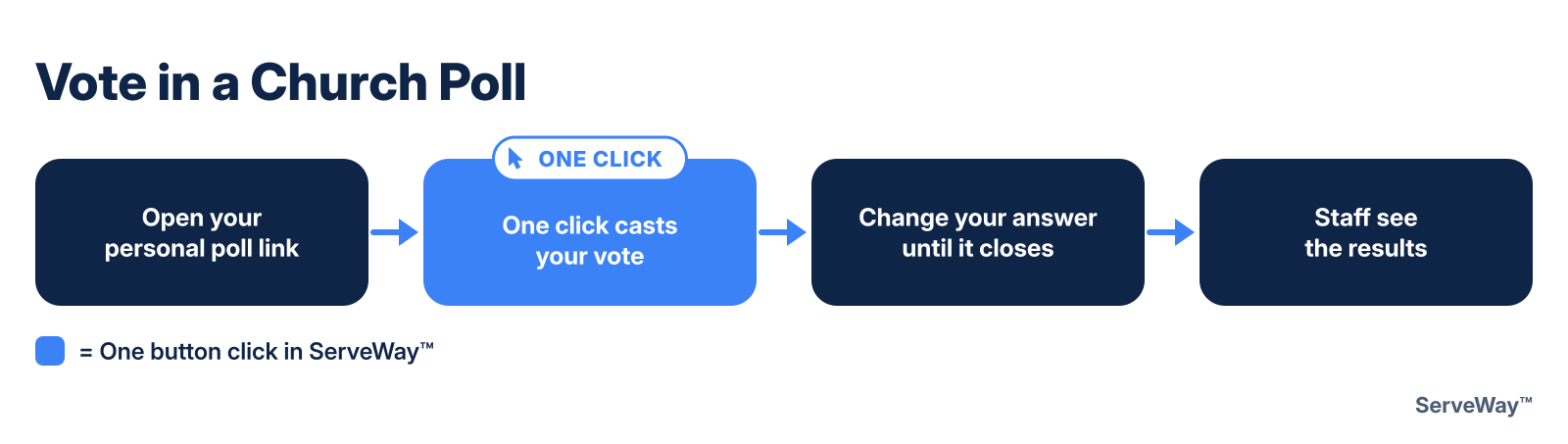
When the church asks a question, you get an email (or a newsletter) with a link made just for you. Open it, and the poll page on the church website shows the question. One click on your answer records your vote. You do not need a password.
Each person gets one vote. If you change your mind, open the same link and pick another answer. The new answer replaces the old one until the poll closes. Votes are not anonymous to church staff: staff can see who voted and how.
10. Ask for Benevolence Help
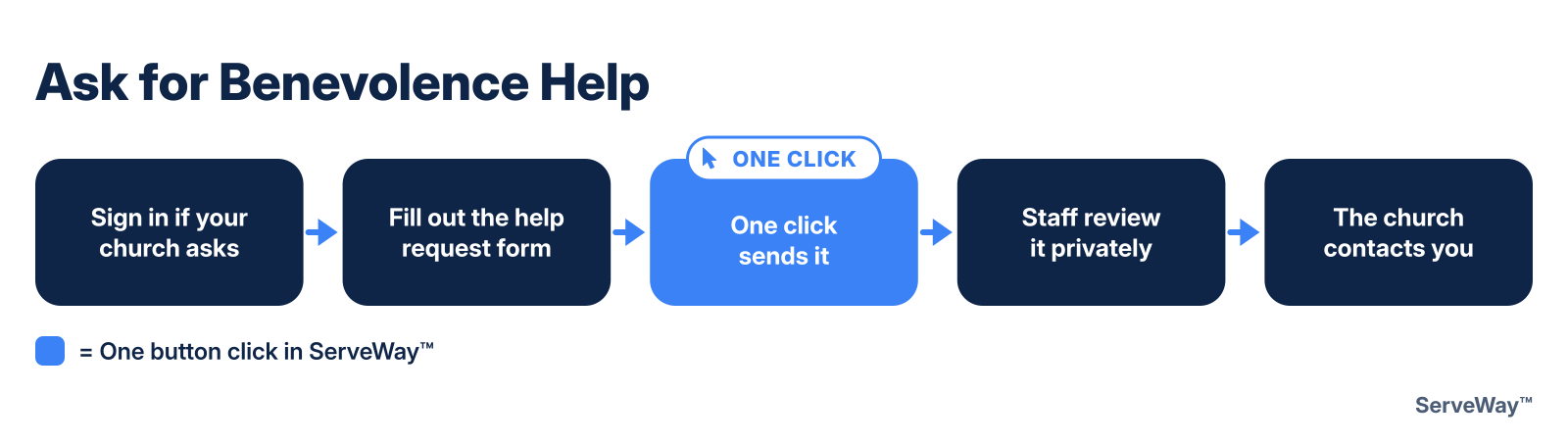
Open the help request form on the church website. Many churches limit it to members, so you may need to sign in first. Say what you need and give a phone number or email address.
Click send. The request waits privately in ServeWay™ until church staff review it, and nothing is recorded as given until they approve it. Someone from the church then contacts you by phone or email.
11. Join a Small Group
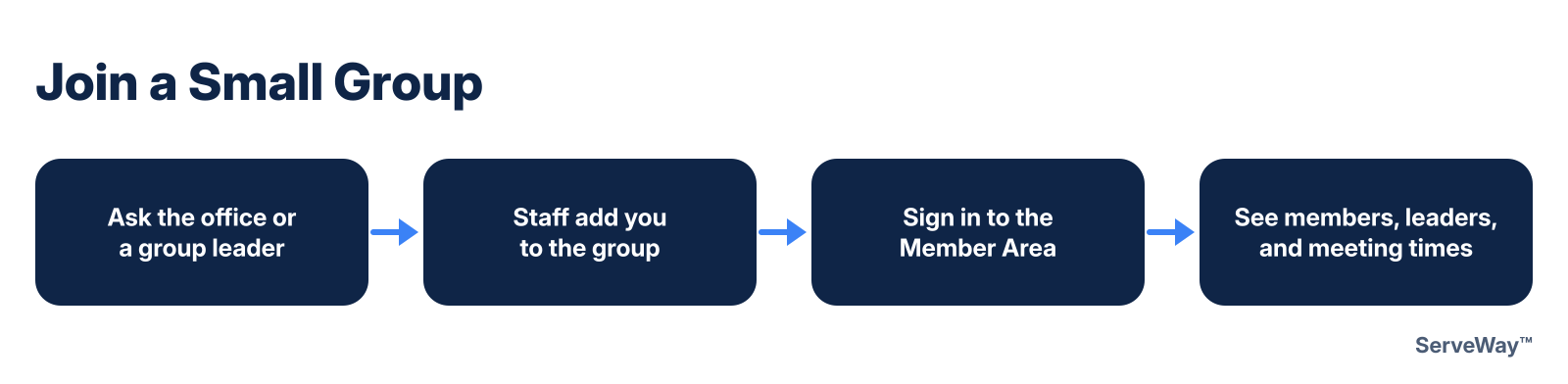
To join a small group, tell the church office or the group leader. Staff add you to the group in ServeWay™. There is no browse-and-ask-to-join page on the website yet.
Once you are added, sign in to the Member Area to see your groups. Each group shows its leaders, when and where it meets, and its members. Phone, email, and address follow each family's directory choices. Leaders can post notes and files for the group, and members can read them.
12. RSVP to an Event
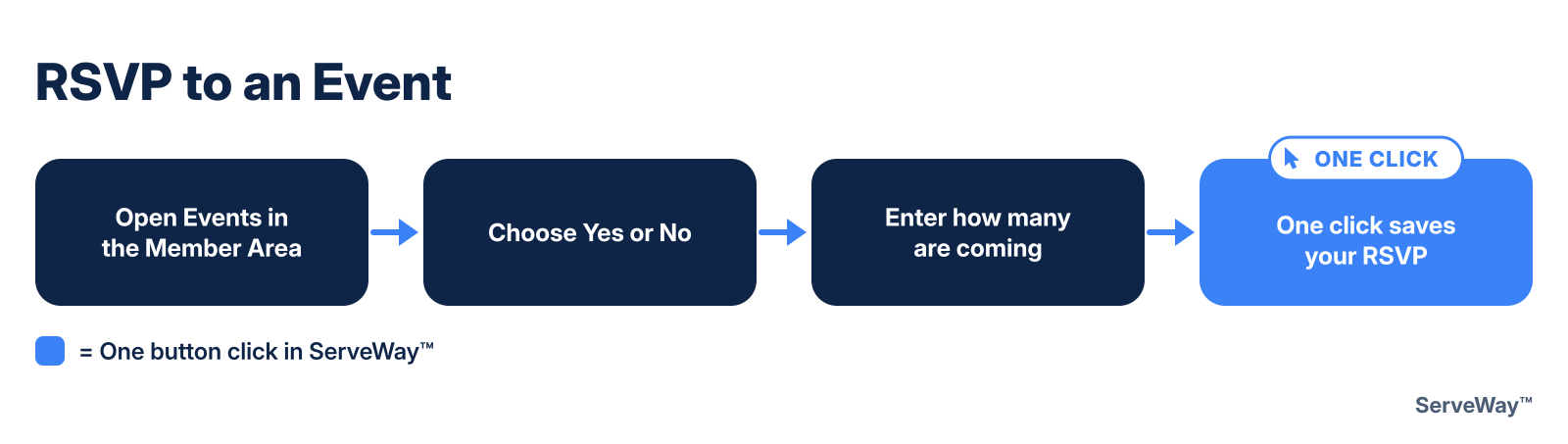
Sign in to the Member Area to see upcoming church events. People who are not signed in do not see them. Each household gives one RSVP for each event.
Choose Yes or No, and if you are coming, enter how many people from your household will be there, from 1 to 30. Click Save RSVP and the page confirms it was saved. To change or cancel, come back, change the number or choose No, and save again.
13. Check the Church Calendar
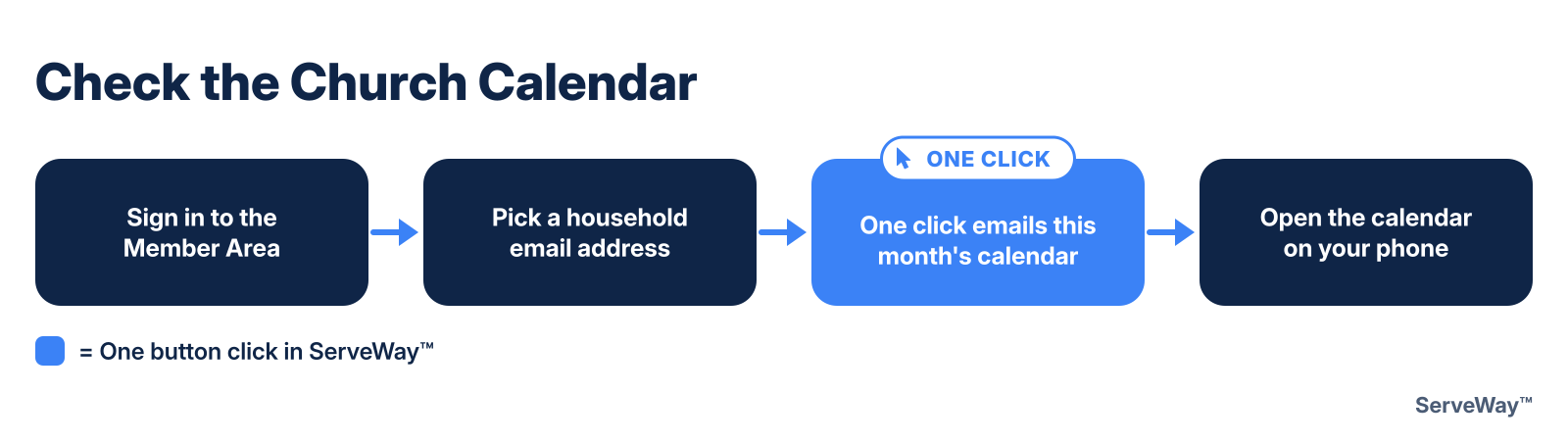
In the Member Area, the Church calendar section emails you this month's church calendar. Pick one of the email addresses already saved for your household and click to send it.
The calendar arrives as a printable PDF you can open on your phone or computer. It is the same calendar the church publishes each month. A month or week view on the website, ministry filters, and adding events to your phone's calendar are not in ServeWay™ yet.
14. Request an Event on the Calendar
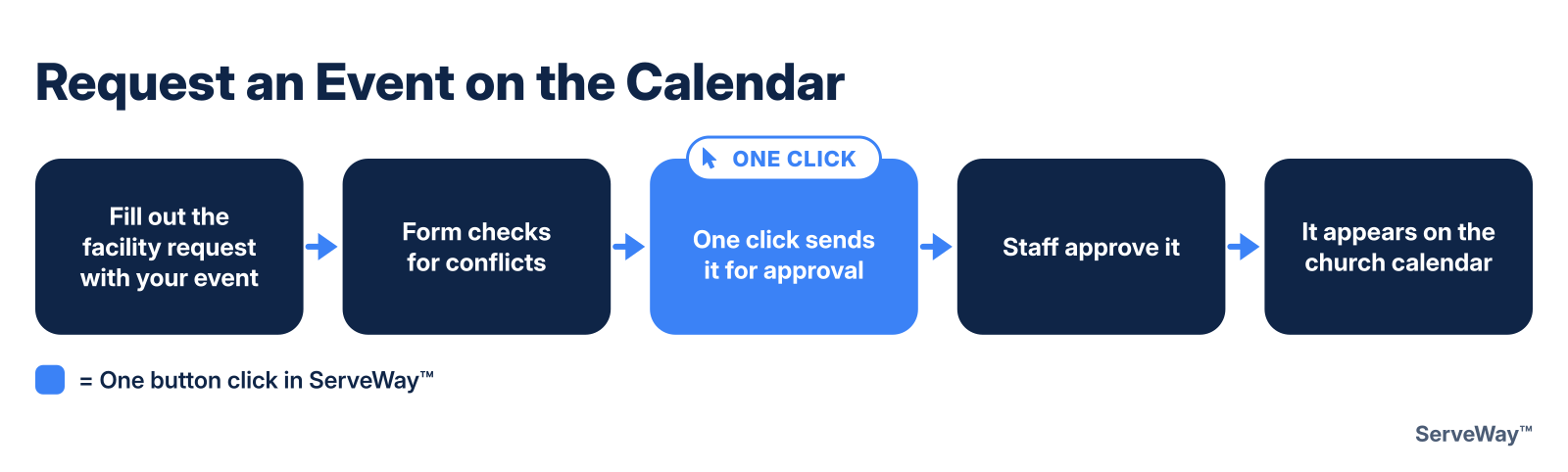
Church events are requested with the facility request form. Give the event name, the room or space, and the date and time. The form tells you right away if the space is already booked, and warns you about other requests for the same time.
Click send. Your event is not on the calendar until a staff member approves it, and staff decide whether it also shows on the public church calendar. Once approved, it stays on the calendar unless staff cancel it.