Church Website Plugins
WordPress sites only. These plugins work only on a church website built with WordPress. They don't work with Wix, Squarespace, Weebly, or other website builders.
ServeWay™ comes with a set of WordPress plugins for your church website. The ServeWay™ plugin lets members sign in, update their household, browse the directory and see the prayer list using the information your staff already keep in ServeWay™, so nobody retypes it. It also handles announcements, voice messages and sermon pages.
The plugins are in the WordPressPlugins folder that installs with ServeWay™. You upload each one to your WordPress site once, under Plugins, Add New, Upload Plugin.
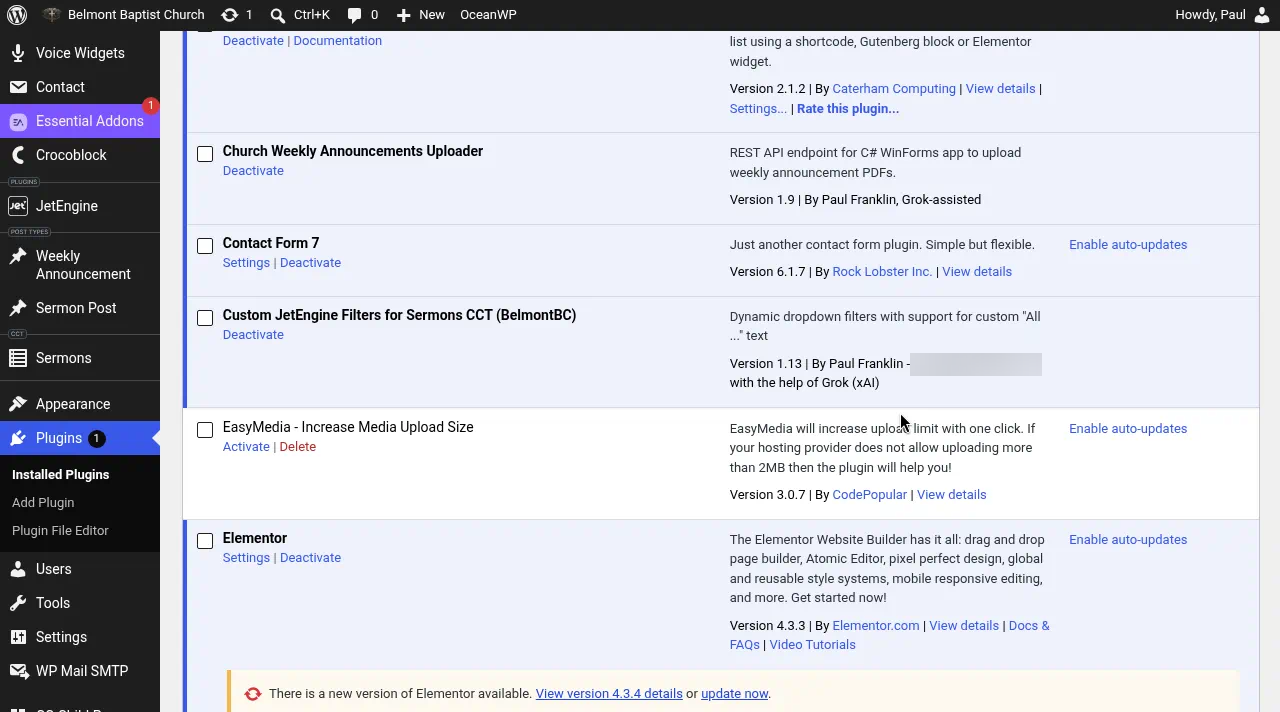
What each plugin does
ServeWay™ Member Access
Adds three members-only pages to your site: Member Area, Church Directory, and Prayer Requests. Your member records stay in ServeWay™. The plugin looks them up when a member opens a page and saves their changes back, so there's one list to keep current.
Church Weekly Announcements Uploader
Receives the announcements PDF when staff press Upload PDF to Church Website in ServeWay™, and publishes it on the site.
Notification MP3 Endpoint
Gives ServeWay™ the address of the newest voice recording in this month's uploads folder, for voice notifications.
Notification Copy MP3
Works with a Contact Form 7 form. When the form sends an MP3 address, the plugin downloads the recording and saves it as the current notification.
JetEngine Sermon Filters
Adds a dropdown filter to your sermon pages so visitors can narrow sermons by values already stored. Requires JetEngine.
JetEngine Attachment Link
Turns a stored attachment into a working file link on sermon and media pages. Requires JetEngine.
ServeWay™ Member Access
This is the plugin most churches will notice. It puts three pages on your website that only signed-in members can see. Each page is a WordPress shortcode, so it drops into your existing theme: [serveway_household] for the Member Area, [serveway_directory] for the Church Directory, and [prayer-requests] for Prayer Requests.
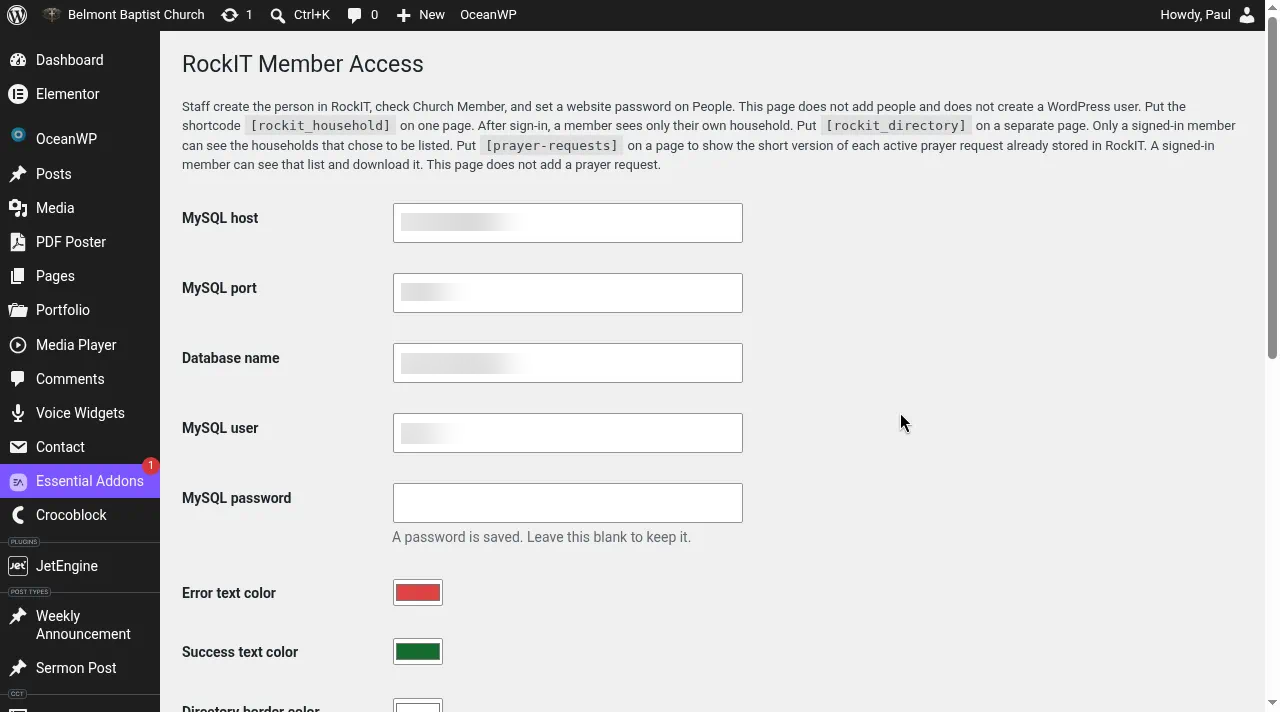
Settings
The plugin has one settings page in WordPress. There you enter the login the plugin uses to reach your ServeWay™ database, the text and border colors for the pages, and the email address that receives requests for a new member sign-in. Save, then press Test connection to check that the plugin can reach ServeWay™.
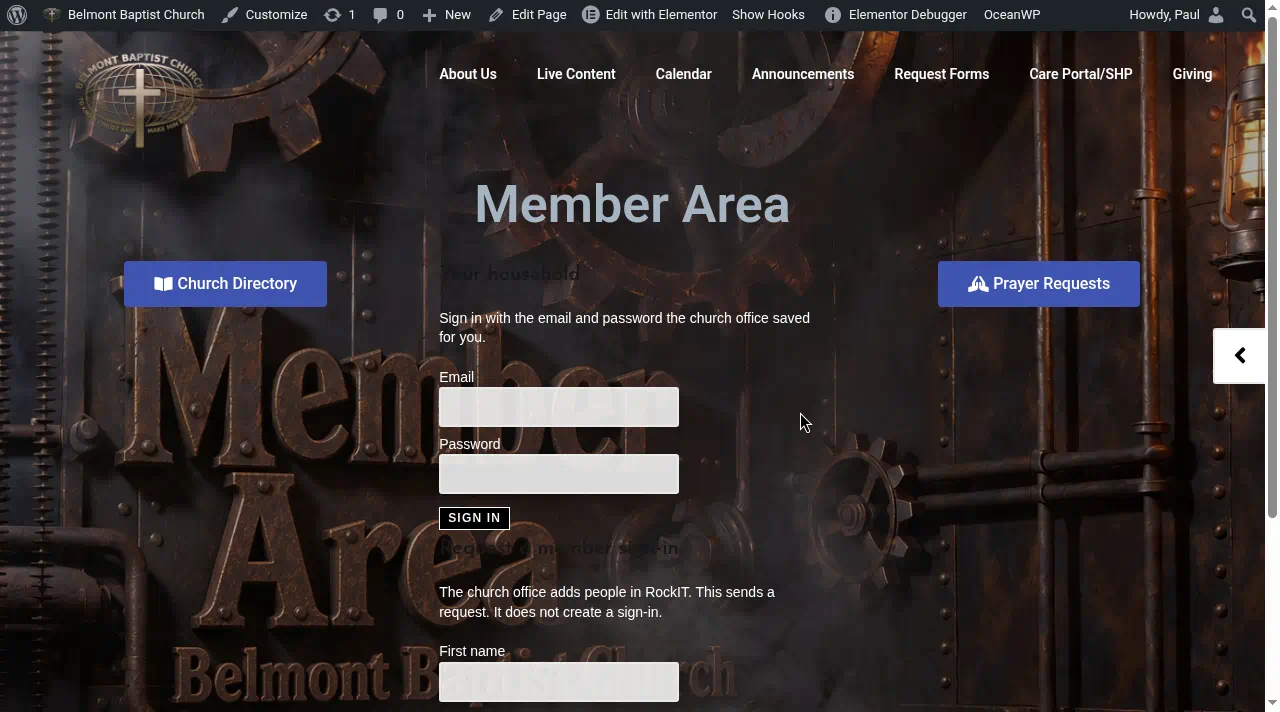
Member sign-in
Staff turn on a member's website sign-in from the People screen in ServeWay™ by checking Church Member and setting a website password. Members then sign in with their email and that password. Someone without a sign-in can fill out Request a member sign-in, which emails the church office. Nothing is created until staff approve it in ServeWay™.
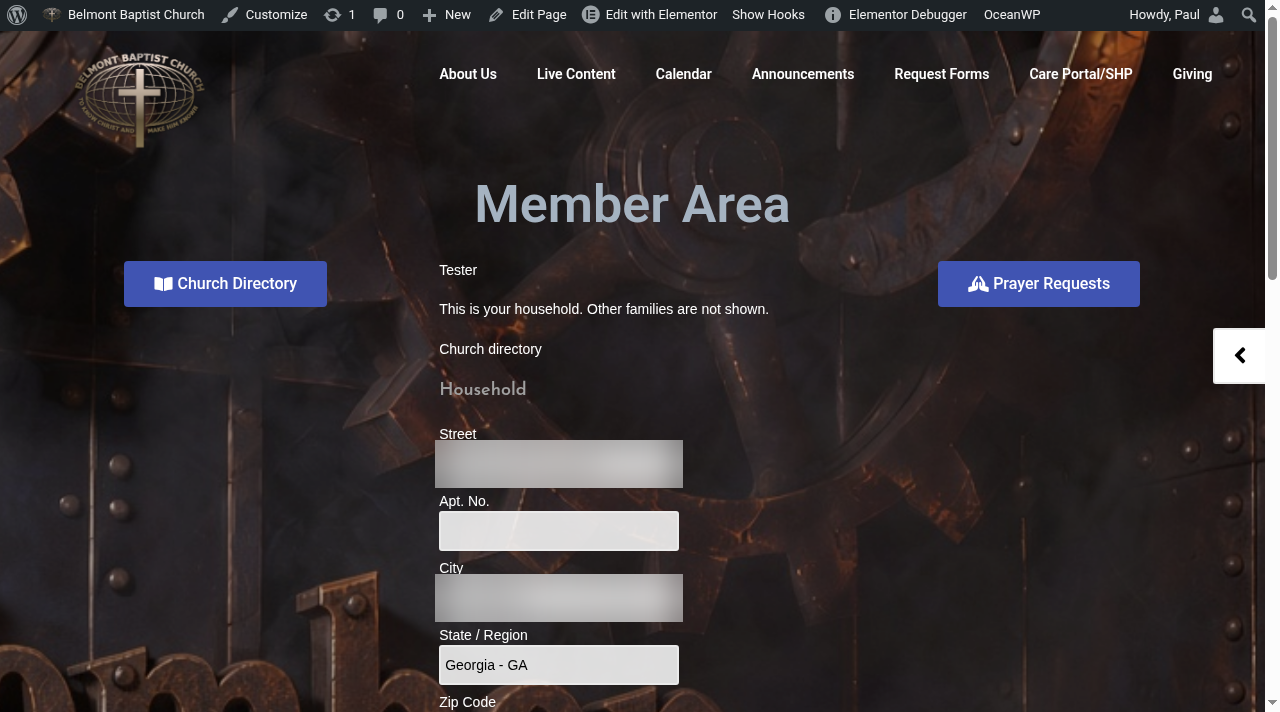
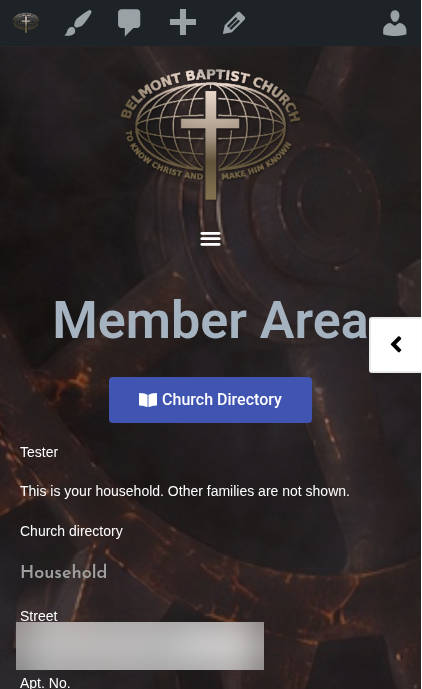
Member Area
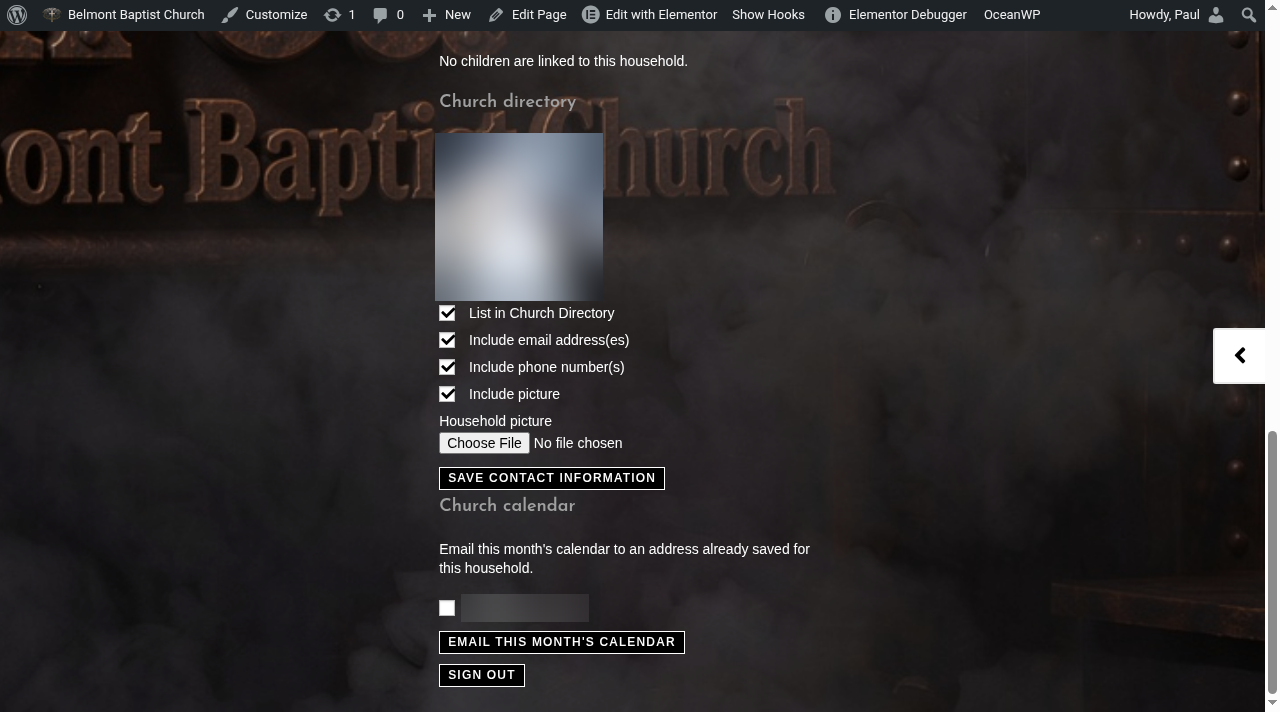
After signing in, a member sees only their own household. Adults can update the household address and home phone, plus each adult's email and phone. They choose whether the household is listed in the church directory, whether to include email, phone, and a picture, and they can upload a household photo. They can also email this month's church calendar to themselves. Everything they save goes straight into ServeWay™.
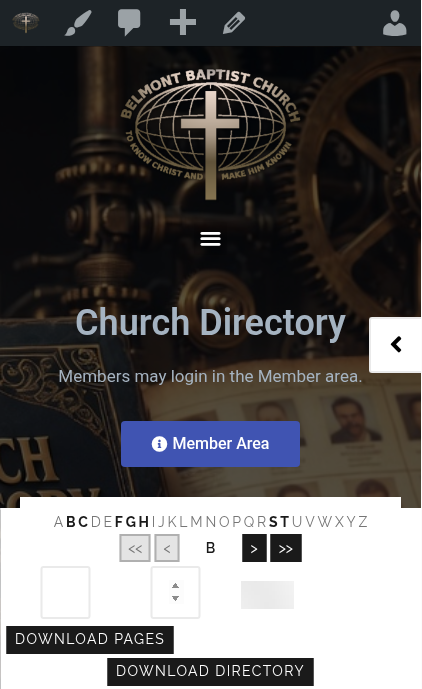
Church Directory
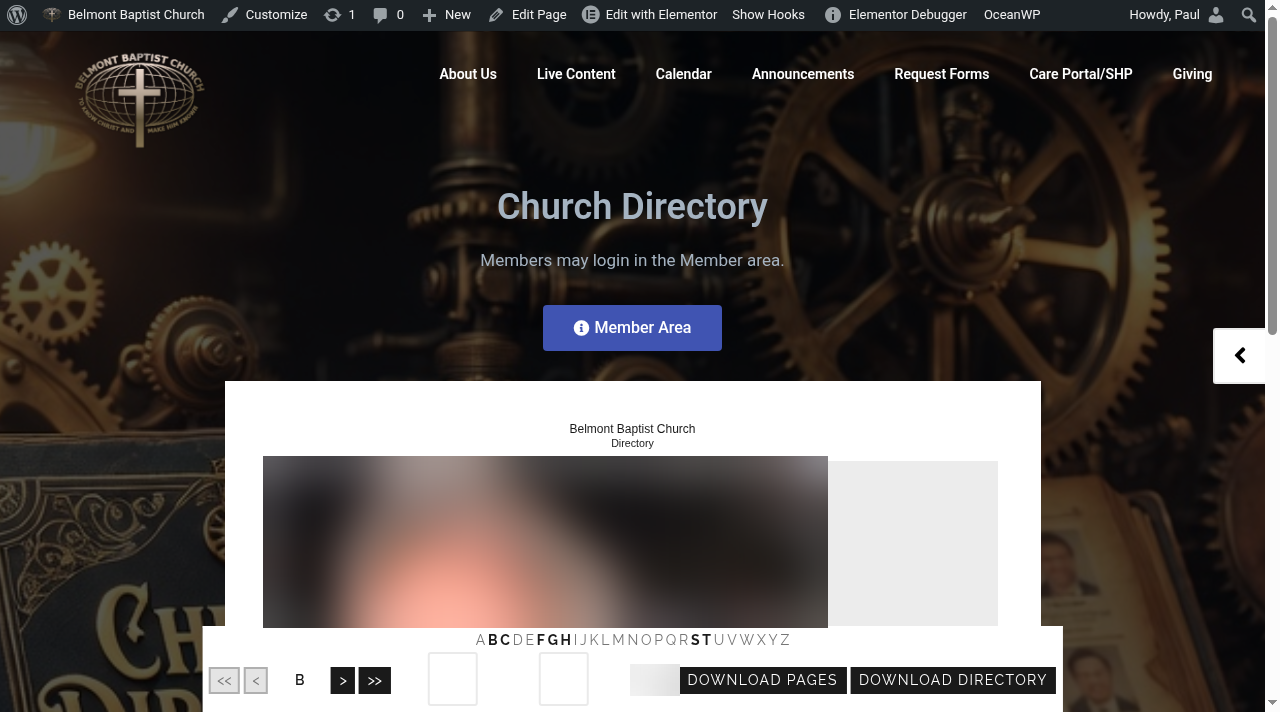
Signed-in members can browse the households that chose to be listed, one household per page, with a letter bar and page buttons to move around. Email, phone, and picture appear only when that household allowed them. Members can download pages or the whole directory.
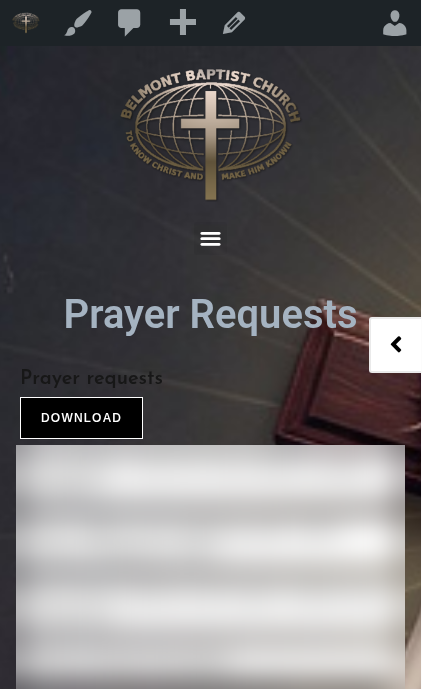
Prayer Requests
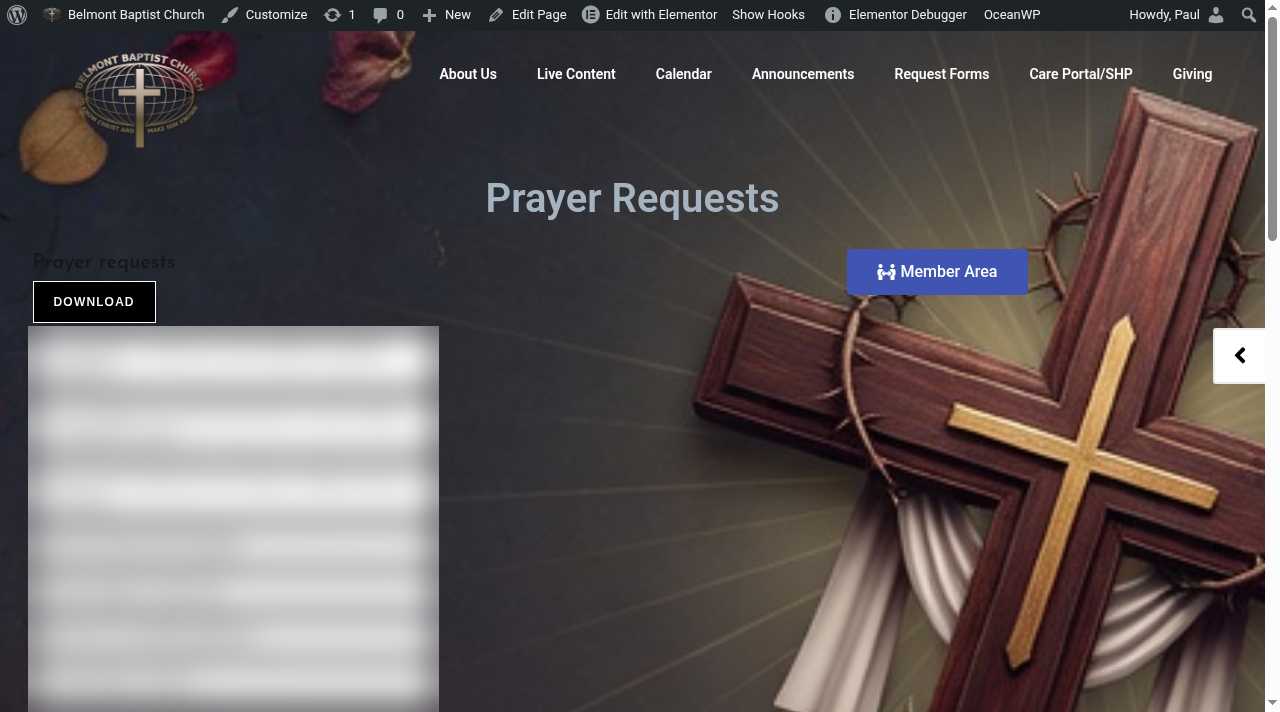
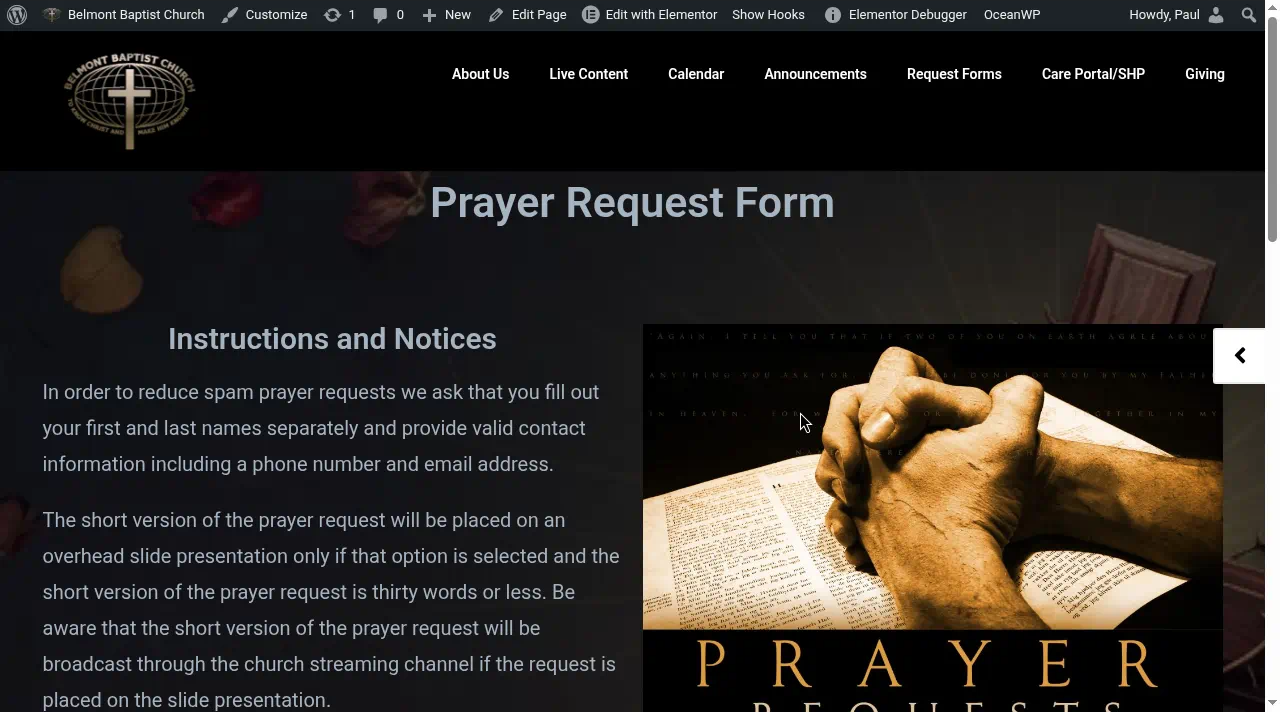
Signed-in members see the short version of each active prayer request. Requests marked staff-only stay off the website. Members send new requests through your prayer request form. Staff review each one and add it in ServeWay™, and it appears on the list from there. Download saves the current list.
Works on phones
The member pages adjust to phones and tablets, so members can check the directory or prayer list from wherever they are.
Good to know
The plugins need a self-managed WordPress site where you can upload plugins (WordPress.com sites need a plan that allows plugins). The two JetEngine plugins need JetEngine, and Notification Copy MP3 needs Contact Form 7. ServeWay™ doesn't install the plugins on your website for you. Step-by-step setup is in the ServeWay™ User Manual, and our team can help on the Support page.